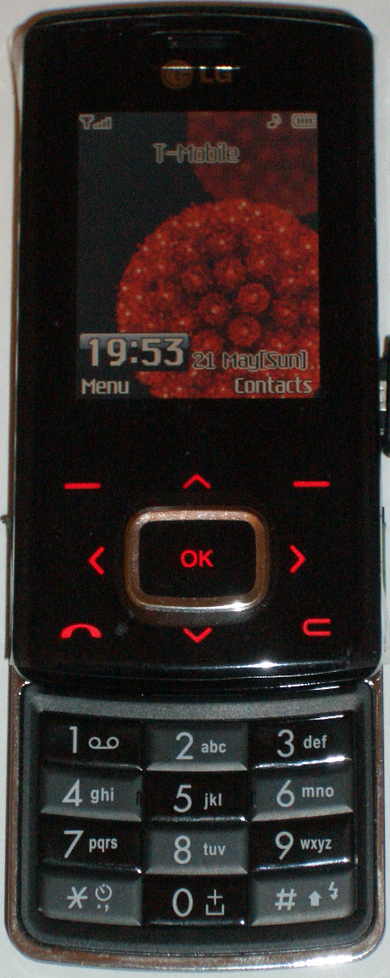
UPDATE Sept 2009: check your LG Chocolate phone's serial number, you could win $10,000!
UPDATE May 2007: if you want info on the LG Shine KE 970 phone - general review, photos, manual and software download, Gmail access and browser tips, and tips on connectivity (including transferring MP3s) and syncing the KE970.
With your KG800 Chocolate multimedia phone you get a USB cable to link it to your PC or Mac plus a CD of PC software (see part 1 of my review of this gorgeous phone for general pros, cons, tips etc. For a photo of how Lara Croft might wear this phone, see this post!). It also has Bluetooth connectivity. But its file storage capacity is limited to 128 MB.
This post is meant for the LG KG800 Chocolate phone but I've heard that a lot of this applies to other LG phones too. I've not tested that personally so if you want to try it do so at your own risk. The software (and manuals) for the main LG phone models in the UK, like the KG320, KG810, KG920 etc, can be downloaded from the uk.lgmobile.com site.
You can:
A. copy to your Chocolate phone MP3 or other audio files for ringtones or for the MP3 player, or transfer pics, videos and text files to it for viewing or as wallpaper
B. backup to PC the photos and videos that you've taken with the phone
C. use the phone as an extra removable drive, to transport files between different PCs
D. use the phone as a modem for your PC e.g. laptop (LG Internet Cube)
E. copy or synchronise contacts, diary and notes between phone and PC (LG PC Sync)
F. get extra ring tones and wallpaper from the supplied software (LG Contents Bank)
But a major source of problems for users is that, when using the USB cable between phone and computer, there are two, yes two, entirely separate methods of connection, reflecting 2 different modes the phone can operate in:
- as a removable drive, like a USB flash drive or USB key (what LG call "mass storage mode"), or
- as a modem.
To do A to C, you can use the phone as a removable drive - just connect it via the USB cable to your PC or Mac (yes this USB drive element works fine with Macs, see these comments), covered below. See the My Stuff section of the manual and also this separate "USB mass storage" manual.
But for D to F, getting a working connection between the Chocolate phone to your PC isn't as straightforward as it should be, because you have to use the phone as a modem for D to F to work, which means installing modem software on your PC (the LG software is PC-only, sorry Mac/Linux users) and taking some other fiddly steps to get the phone to talk to the LG-supplied Contents Bank software. So I deal with the best way (for Windows XP anyway) below.
Basic USB connection - for MP3s etc
If you just want to do A to C above, FIRST make sure the phone is on and in the basic state it's in when you first power on (i.e. on the "home screen", and not in any menu items). Do not at any stage close the phone slider, always leave it open.Then, connect the phone to the PC or Mac via the USB cable. You should get a message on the phone screen with a yellow background saying "Do not disconnect the cable without the proper operation USB If you use modem select Connectivity-modem". Again keep the phone open.
The KG 800 will appear as an extra "Removable Disk" in My Computer/Windows Explorer (or the Mac equivalent), with a folder called My Media which has some subfolders (your mileage may vary):
- Music
- Others
- Photos
- Text and
- Videos.
You can then copy music, image or video files etc from computer to phone and vice versa via My Computer/Windows Explorer or other file manager (there's free software to convert 3GP to AVI if you want to transfer videos to your computer and play them there). (I don't know if this works for Windows 98 users or if extra software needs to be installed first for this.)
See the "USB mass storage" manual for useful step by step pictorial info and instructions on this USB removable drive mode.
But some folders on the Chocolate are annoyingly invisible, so you can't transfer e.g. voice recording files from phone to computer, on my system at least.
Also no system files are visible, and there are a few gotchas to watch for:
Folder sensitivity - where to put music files and other files
MP3s and other audio files: you must copy MP3s to the Music folder, video files to the Videos folder within My Media, text files to the Text folder, or they won't play or display. The types of music files the Chocolate can play are listed in Part 1 specifications.Don't create any subfolders to put your MP3s in, or your MP3s won't be found.
Photos and pictures: Don't copy pics to the Photos folder (which is reserved for pics taken with the Chocolate), you won't be able to view them there - put them in the Others folder. (You can however copy pics from the Photos folder to your computer for backup or viewing.)
The phone won't display JPGs bigger than 460k or GIFs over 100k.
You can use pics you've uploaded into the Others folder as wallpaper, see further below. But if you want to use an image as wallpaper it can't be bigger than a certain size (the official LG info is contradictory, I'm not sure if the limit is 100k as per pg. 6 of the storage manual or 30k as per p.73 of the main manual). See part 1 Specifications and also Images.
Files for transporting
If you're using the phone as a USB key type device, put the files in the Others folder - that's the best place for them.Disconnecting
You shoudn't just unplug the phone or cable when you're through, with a PC at least. Most people will be familiar with the process but if not, in your system tray at the bottom right of the PC screen you need to rightclick the icon, then choose Safely Remove Hardware:
Then you'll get a popup box something like this (depending on your own setup):

You want to choose USB Mass Storage Device, but beware if you've more than one removable drive attached to your PC to pick the correct one for the phone. When you highlight it in the list and click Stop and you see this, you'll have got the KG800 phone:

Click OK and you'll see:

Now you can disconnect the phone or its cable from the PC.
The LG software on the CD
To use the free ringtones and images provided by LG, and also in order to transfer Java games/apps from PC to phone, you have to install the LG software first. (Unfortunately for Mac users, it's PC only.)The LG software on the CD (also downloadable) comprises:
- Contents Bank - extra free ringtones and pics (for wallpaper etc) you can download to your Chocolate phone (you can use Contents Bank to transfer Java games to your phone too, after some tweaking - see below)
- Internet Cube - to use your KG800 as a modem for your laptop to access the Internet
- PC Sync - to access and edit your phonebook, schedule and memo on the PC
- USB modem driver.
- install the required software including the modem driver, AND
- follow a very precise order of steps to put your phone in modem mode and connect it to the PC (fiddly, I know, but get it wrong and it won't work).
Here's the howto. (Click on any of the pics to get a larger image.)
DON'T try to connect phone to PC yet. (Well you could, but you'll be limited in what you can do with it, i.e. just A to C in the list above, until you finish the steps below. Plus, if you try to use LG Content Bank etc, without installing the modem driver, you'll get Error CME-250 and other things...)
First, do this:
1. Install the software from the supplied CD (or download it from here, unzip then install). It should run automatically when you insert the CD but if not just view it in My Computer or Windows Explorer and doubleclick Setup.exe. I'd skip the intro if I were you... pick the KG800 phone, English seems the only choice on my CD.

Then when you get to the following, make sure EVERYTHING is ticked particularly the last item, even if you aren't planning to use the Chocolate as a modem for your laptop (you'll see why later):

2. Check it's installed properly by inserting the CD again (or clicking Setup.exe) and picking Modify, making sure it's all ticked and trying again. It took me several gos to get the modem to install, go figure.
3. Do NOT try to connect the phone to the computer yet - this is important, Contents Bank and PC Sync won't work if you try to connect the phone to the computer before you do these next things. Switch the phone on. DON'T plug in the USB cable yet. Go to the menu Settings, Connectivity, Modem and pick Yes for "Do you want to activate modem"? Do NOT slide the phone closed, leave it open (and keep it open during the entire process). Do NOT launch Contents Bank or PC Sync on your PC yet, leave them closed.
4. Go back to the main "home" screen of the phone by pressing Back, Back and Back on the phone (UPDATED 8 Apr 2007: Alan reports that, on his phone anyway, backing up turns his modem off; in his case he connects to the PC straight after activating the modem and it works. Do whatever works for your phone, obviously, and if one way doesn't work try the other ). Leave the phone on (and slider open - don't close the slider at any point during the attempted transfer or you'll kill it). Again make sure Contents Bank and PC Sync on the PC are NOT open. Now you can connect the phone to PC via the supplied USB cable. (If you haven't installed the modem driver properly before, you'll get all sorts of new hardware found etc errors. Just try step 2 again till it works!)
5. Then, and only then, should you fire up LG Contents Bank or PC Sync - there will be shortcuts from your Start menu to those programs, as usual. (I'm not going to cover Internet Cube in this post). Leave the phone open throughout.
LG Contents Bank
The next thing you need to do, after (NOT before) you've installed the software, activated the modem on the phone and connected the phone to the PC as detailed above, is to check the Contents Bank connection is correct - in the Contents Bank's Tool menu, pick Option. Under Setting, click the dropdown list for Port and choose the one that says LG USB Cable (COM something - mine is 9 but yours may differ, the main thing is to pick LG USB Cable):
Baud rate doesn't really seem to matter. Then click OK, and in the main window click the Connect icon in the middle of the window.
You can preview ringtones (menu View, Melody or click the
 icon) or images (menu View, Picture or click the
 icon).
Check out the folders on the left for ringtones you can listen to ("Buzz", "Classics", "LG Creations"):

Just doubleclick on a ringtone name to hear what it sounds like:

When you hear a ringtone you want, just click on it on the left (you can hold down Ctrl and click more than one), then click the Download icon in the middle of the window to download it to your Chocolate phone. If you get a Timeout popup dialogue box you may need to click Connect again to make sure the phone is properly connected (as if you connect the phone, then don't do anything for a while, the connection is terminated). (If you keep getting Timeout errors, try disconnecting and turning the phone off and shutting down Contents Bank. Then go through steps 3 to 5 above and then launch Contents Bank again. It may take several tries, be warned!)
Those ringtones are all in MMF format or MIDI format. If you want to use your own MMF or MIDI ringtones, before you connect the phone just copy the desired files to the RingTone subfolder of your Contents Bank folder on your computer (on mine it's C:\Program Files\LGGSM\LGContentsBank\Contents\RingTone\ with subfolders for Buzz, etc). You can even create new subfolders on your computer, as long as they're in the LGGSM\LGContentsBank\Contents\RingTone folder.
For wallpaper, again you can open the different folders on the left (there are different themes like cute animals (kittens, awwww), vegetables if your thing is holding ripe tomatoes in your hand or if you prefer courgettes, etc):

Click on a filename to preview what one looks like on your phone:

Again you can choose more than one file by Ctrl-clicking on them, then click the Download icon in the middle of the window to download them to your KG 800 (they'll go in the My Stuff, Images folder).
And as with MMF or MIDI ringtones, if you want to use your own pics as wallpaper, one way is to save them into the C:\Program Files\LGGSM\LGContentsBank\Contents\Picture\ folder of your computer (including creating subfolders within Picture if you wish) and transfer them to the phone with Contents Bank. See further below.
You can also use Contents Bank to delete any music or photo files that you previously downloaded to your phone - just select the file on the right and click the Delete button in the middle.
To disconnect the phone in this mode you don't need to safely remove hardware, you can just unplug it.
How to use downloaded audio files as ringtones and images as wallpaper
Ringtones. On the phone itself, to use your downloaded ringtones (1) go to the profile you want (menu, Profiles, pick the profile like General which is the default), choose Personalise, Ring tone, My Folder (this method will also let you pick as ringtones MP3 files transferred to your Chocolate's Music folder via the removable drive method) - or alternatively (2) go to My Stuff, Sounds, highlight the one you want, Options, and Set as ringtone. Obviously you'll need to activate the profile to get the ringtone associatd with that profile.If you've changed a profile to include a particular ringtone and activated the profile, but it still rings with a different ringtone, check who's calling and are they in a caller group. Get to Caller groups via the Contacts menu. After you select a group there's a Group ring tone option. Check what that ringtone is. If there is a different group ring tone for a group, that will override whatever ringtone you set for the profile, so you need to change the group ring tone too.
Wallpaper. To choose a downloaded pic as wallpaper go to menu My Stuff, Images (or Others, if you downloaded the pic via the basic USB removable drive connection), pick the one you want, View, Options, Set as wallpaper (if you want to use an image from the Others folder you may get a "Copy to Images to set as wallpaper. Continue?" message - of course you should pick Yes). Another way is Settings, Display, Wallpaper, My Folder but it's not as good as that limits you to choosing pics in the Images folder. There are size limitations for wallpaper. Both GIF and JPG files will be fine as long as they're not too big - the official LG info is contradictory, I'm not sure if the limit is 100k as per pg. 6 of the storage manual or 30k as per p.73 of the main manual.
Some pics may look cut off in the Preview view in Contents Bank on your PC, but don't worry - after you transfer them to the phone, if you view them and in Options choose Set as wallpaper, the phone will scale them down to fit. The proportions may look a bit odd as a result, but it's better than not being able to use your own pics at all. Perfectionists may wish to scale the pic to the right resolution on their computer before downloading it!
(You'll see that My Stuff now has extra folders not mentioned in the manual - after Text there will be Images and Sounds folders.)
US phones, miniSD cards and music files
US phones have a mini SD card slot, lucky Americans (UK phones don't). Here's some helpful person's tip on how to play MP3s or other audio files from the SD card: create a folder on the card called "my_mp3" and put the music in there and it should work. The music essentials kit also apparently works for transferring sound files to the Chocolate. Thanks for the tips. If only my version took expansion cards!LG PC Sync - contacts
Once you've done steps 1 to 4 above, IN THAT ORDER (especially step 3 THEN step 4 NOT the other way round), and keeping the phone slider open always, you can also launch PC Sync (click the pic below to enlarge it): Again you choose the Option menu and pick the same numbered COM port as you did for Contents Bank. The main thing this does is to load your contacts info from your phone (both phone memory and SIM) into your PC.
Now although this program is called PC Sync, and there's an Outlook tab and Express (for Outlook Express) tab, so far I've not been able to read anything into PC Sync from Outlook, let alone synchronise contacts between phone and Outlook 2003 on my PC (the instructions say it's compatible with Outlook 2000 so maybe that's why - though Outlook Express doesn't work either).
The right side of the window shows the contents of your Chocolate cellphone. The left side of the PC Sync window represents your PC.
On the right (representing your phone) in the bottom half there are 2 tabs: Mobile and SIM. Clicking the Mobile tab (after you've correctly connected the phone as described above, of course) will show the contents of the contacts in your phone's memory, and the SIM tab displays the contacts in your SIM card's memory.
On the left (PC), in the bottom half there are 3 tabs: Phonebook, Outlook and Express. Phonebook will be the copy held on your PC of your Chocolate phonebook. The Outlook tab is for the contents of your Outlook address book (e.g. Outlook 2003), and the Express tab for the contents of your Outlook Express contacts. You'll see that if you click the Outlook tab (or if that doesn't work first click the Outlook tab then click the Read button in the top left quadrant), the PC Sync software reads in and displays the contents of your Outlook contacts (I think Outlook doesn't even have to be open for it to do that) - it may flash up "Adding data" and you may get messages like the following (with Outlook 2003 anyway):

You should tick the box in the "Allow access for" line and select a time period in the dropdown (max i.e. 10 minutes is best especially with a large address book), then click Yes. If you don't PC Sync won't be able to read in your contact details from Outlook. And if you have too many contacts it may not be able to read them in either (that's the problem I had when first trying all this. When I moved most of the contacts from Outlook into a separate file, it was fine).
After it's read in the details of your Outlook (or whatever) contacts, they'll show in the bottom left quadrant. Tick the ones you want to copy across to the phone or Select All to copy all of them. Important: if the phone is not already open, slide it open and keep it open throughout! (thanks to Anon). On the right, in the bottom right quadrant, click the Mobile or SIM tab depending on where you want the contacts copied to on the phone.
Then in the middle of the window click the >> button. (It works the other way round to transfer contact details from phone/SIM to Outlook/phonebook, using the <<). PC Sync also provides a handy way to create new contacts and edit existing ones using a larger and quicker PC keyboard. Just use the New and Edit buttons in the top left quadrant. There's a File, Save as CSV file and also Load from CSV file option but I've not been able to get that to do anything yet... Of course ideally I'd like to be able to use this to backup my contacts to my PC, if nothing else. I got "Success to save" on trying to save but I haven't found the file (if it's meant to save as CSV). You can view and edit your Calendar and Memos too, see the tabs at the bottom of the window. Again you can just disconnect the phone in this mode without using Safely remove hardware when you're through.
Troubleshooting PC connection problems, improving connectivity
Timeout..., Initialising please wait..., Other application used this port. Failed to open... - sound familiar? Consider the suggestions in this post. That post also deals with possible ways to improve connectivity e.g. increase size of files transmissible via Contents Bank to the phone in modem mode.
Bluetooth connectivity
You can also connect the KG800 Chocolate to your PC via Bluetooth (Settings, Connectivity, Bluetooth).I managed to get it to work with my PC's Bluetooth USB adapter (a Belkin F8T008) and even paired the Chocolate with my PC (just type in any number for the PIN, and the same number on the phone).
I got PC Sync to work over Bluetooth, loading contacts from phonebook to PC (in PC Sync make sure under Option you pick the right COM port for Bluetooth, just experiment and see). But note that according to the manual "you can only exchange data within the phonebook" over Bluetooth. I think that means that only PC Sync works properly with Bluetooth.
Certainly I couldn't get Contents Bank to work over Bluetooth, not even when picking the right (I thought) Bluetooth port, and I came to know and hate Error CME-250.
I also managed to transfer files over Bluetooth from the phone to my computer (by drag and drop from my My Bluetooth Places window - yours may differ) - but it just wouldn't work the other way round, I couldn't copy files from computer to phone.
Files of any type, it seems, can be sent via Bluetooth e.g. music, pics, to another phone. You can also receive files via Bluetooth and they should automatically be saved in the right folder, but I've not managed to test that yet.
Some commenters have helpfully posted their experiences with Bluetooth headsets - please see those comments for howtos.
One general warning though - always remember to switch Bluetooth off when you've finished (or in the sub-Settings set Visibility so only paired devices can view your Chocolate), or else you could be "bluejacked" with joke messages or worse.
Java - transferring Java apps to your phone via your PC
If you want to download Java apps e.g. games to your KG800 over the USB cable rather than doing an OTA (over the air) download using the browser on your phone (which costs in data charges), now see this post.[This post was generally updated on 29 August 2006, mainly to add detailed info about syncing with Outlook/Express, and the Java section - with many thanks to the people who commented. Further updated on 2 October 2006 for the Java post, thanks to Anon! And another update on 1 Jan 2007, mainly to expand on ringtones and wallpaper, and again on 2 Jan 2007 to link to a new troubleshooting post, etc.]
UPDATE May 2007: if you want info on the LG Shine KE 970 phone - general review, photos, manual and software download, Gmail access and browser tips, and tips on connectivity and syncing the KE970.
Tags: