If you'd like to right-click on a Word or Excel document in Windows Explorer to open it as read-only, supposedly you should be able to hold down the Shift key, rightclick on the filename, and there should be an option to "Open as Read-Only".
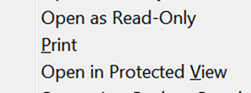
However, choosing this Shift-rightclick option doesn't actually open the document as read-only. This seems to be a known bug in Office 2003 and Office 2007, and also in Office 2010 and Excel 2010.
There's one workaround and one fix.
Open in protected view
The workaround is that, if you Shift-rightclick on a Word or Excel .xls file in Windows Explorer, there's also an option to "Open in Protected View".
Choose that, and it works pretty much as read-only: you can't change anything, you can't save, but you can copy/paste from that document. This works for Excel as well as Word.
Rightclick context menu item
What solves the problem completely in Word, which I used myself, is to edit things to add a new rightclick Open Read-only context menu option that actually works to open Word documents as read-only. I based this solution on a combo of this post (which wasn't actually on opening read only) and this page (about opening read-only, but for XP only, not later versions of Windows).
Here's how to add a right-click context menu item to open Word files as read only, properly - works for me using Windows 7 and Word 2010:
First, download FileTypesMan (free, but donate if you can, the man certainly deserves it!) - you have to scroll quite a way down for the "Download FileTypesMan" link (I used "Download FileTypesMan for x64" as my computer is Windows 7 Pro 64-bit).
Next, unzip/extract the files (rightclick on the zip fiule downloaded and Extract all to create a new unzipped folder) and open the new folder, then run FileTypesMan.exe.
On the left, scroll down till you find and highlight .docx (or use menu Edit > Find and and type docx to find it, make sure you then highlight that line):

Now in the menu choose Actions > New Action (or press Ctrl-n).
In the box that pops up, fill it in like this (and see diagram just above the list):

- Action name - I used "Open read-only" without the quotes, you could just use "Read only" etc as you prefer
- Menu Caption - I used "Open read-only" again
- Command-Line - you can click Browse to find your Winword.exe under Program Files or Program Files (x86) (you will have to drill down to find Microsoft Office, Office14 or Office11 etc depending on your version), or Select from Running Programs if Word is already running, which is the easiest. You could alternatively enter the full path to Winword.exe, with quotes around it, as shown below, but it's easiest to Select from Running Programs (you can launch Word just before you click Select and it should work, just scroll down to find it in the "Select Process" list, possibly to the end):

After you've used Browse or Select, it will fill in the Command-Line box for you with something like this:
"C:\Program Files (x86)\Microsoft Office\Office14\WINWORD.EXE" "%1"
Now, you have to edit what's in the Command-Line box, by inserting after the "%1" the following (which you can copy/paste from the next line) - just after the 1 but before the close double quotes, and make sure there's a space between the 1 and the first /:
/h /n /dde
In my case, the Command-Line box ended up reading like this:
"C:\Program Files (x86)\Microsoft Office\Office14\WINWORD.EXE" "%1 /h /n /dde"
Next, in the DDE section in the Message box, you should enter the following, which again you can copy/paste:
[AppShow][REM _DDE_ReadWriteOnSave][FileOpen .Name="%1",.Revert=0,.ReadOnly=1]
(In the Application box you can enter Word if you like, but it will still work even if you don't.)
Finally, click OK. This adds a new Action to the bottom half of the FileTypesMan window, which you can doubleclick to edit in future.
Now, when you rightclick (no need to hold down the Shift key) a docx document in Windows Explorer, you will have a working "Open read-only" menu option (or whatever title you gave it in the "Menu caption" box above).
Furthermore, in FileTypesMan you can select (in the lefthand column) the type .doc for old-style Word documents, and rinse and repeat the steps above, if you wish.
Excel protected view - rightclick only
For Excel spreadsheets, unfortunately the above fix doesn't work, so you have to open them in protected view.
But to make life easier for yourself, you can use FileTypesMan to change things so that you don't have to Shift-rightclick to get the "Open in Protected View" menu option. Here's how to get that option to display just on a simple rightclick:
In FileTypesMan, find and highlight.xls on the left (scroll or search, as with docx above).

Now in the bottom half of the window, find and doubleclick "ViewProtected" (outlined in red above).
In the box that pops up, UNtick "Extended", and OK:

Now a simple rightclick, as opposed to Shift-rightclick, will call up the "Open in Protected View" option.


