Pages

Showing posts with label browsers. Show all posts

Monday, 16 June 2014

Zotero & Pale Moon - solve Word communication error


If you get "Word could not communicate with Zotero. Please ensure Firefox or Zotero Standalone is running and try again", when trying to use the Pale Moon browser (see Pale Moon review) with Zotero and Word in Windows, here's how to solve the problem.

Don't waste your time trying the usual fixes for that communication error, something more specific is needed for Pale Moon. The following worked for me in Windows 7 Pro and Word 2010.

1. Use the 32-bit version of Pale Moon

The 64-bit version has compatibility issues with Zotero, so even if you have a 64-bit computer, it's best to download install the 32-bit version of Pale Moon.

If you've already installed the 64-bit version of Pale Moon, just uninstall it in the usual way (eg for Windows 7) and then install the 32-bit version.

2. Install the Zotero add-on

Install the Zotero for Firefox add-on in Pale Moon in the usual way.

3. Do NOT try to install the Zotero plugin for Word from within Pale Moon

Where you previously had Firefox and Zotero working with Word integration, you should not try to install the Zotero Word plugin again from within Pale Moon. That will just make even more stuff stop working. Tried that, just made things worse for me, Word integration stopped working altogether even with just Firefox open!

(But if you did that already, you can fix it this way: close Word, close Pale Moon for luck, open Firefox and then reinstall the Word plugin for Firefox direct from the Zotero webpage, open Word, and check that you can add citations normally in Word again.)

4. Edit the Zotero Word plugin

After some searching and tinkering (here's where I got the clue about the Startup folder!), I worked out how to implement the required edits.

Do not try to edit Word's normal.dotm file in the Word templates - you can't edit the Zotero macros from there. Instead:

  1. Open Word
  2. Menu File > Open
  3. In the File Open dialog box, click in the top address bar (or press Alt-d), then type or paste in the following:
    %appdata%\Microsoft\Word\STARTUP

    pmz1
  4. Then hit the Enter or Return key, or click the right arrow button outlined in red in the pic above. The correct sub-folder will open.
  5. Open the Zotero.dot file in that sub-folder. You'll just get a blank Word document.
  6. Now in that Word document, press Alt-F11 (ie hold down the left Alt key and tap the F11 key). A new window will open, with the title "Microsoft Visual Basic for Applications - Zotero". Click on "Project (Zotero) on the left to highlight it:
    pmz-project
  7. Next go to menu Tools, choose Macros, and you'll see this pop up:

    pmz2
  8. Click on "ZoteroInsertCitation" to highlight it, as shown above, then click the Edit button, and a sub-window should open up.
  9. Now find the section that reads:
    ' Try various names for Firefox
        Dim appNames(5)
        appNames(1) = "Zotero"
        appNames(2) = "Firefox"
        appNames(3) = "Browser"
        appNames(4) = "Minefield"
        For i = 1 To 4
    (you can search for 'various names' to get there - menu Edit Find or Ctrl-f)
  10. You need to make two changes
    1. insert the line:
          appNames(5) = "Pale Moon"
      after the appNames(4) line.
    2. change the 4 to read 5 in the "For" line
    so  it now looks like this:
    pmz3
  11. Now go to the menu, File Save Zotero, and close that window, then close Zotero.dot.

5. Further tips on using Zotero with Pale Moon

Don't have both Firefox and Pale Moon open! Just have Pale Moon open to insert citations etc from your Pale Moon Zotero library.

Syncing. You can transfer your Zotero library to Pale Moon by syncing it from Firefox to the Zotero Sync Server, then (using the same username and password) syncing it again in Pale Moon - it may take some time each way. If you don't already have a free Zotero account to enable syncing, it's worth creating an account, if only for the peace of mind with backups!

PDFs. Yes you can view PDFs in Pale Moon and add PDFs to Zotero using Pale Moon. You just need PDF plug-ins for Pale Moon. (Added 17 June)

Credits: this forum and patch. I just added some shortcuts and screenshots!

Pale Moon browser review - best Firefox alternative


palemoonThis post contains a review and tips on using the free, open source Pale Moon browser - the best Firefox alternative that I've found, because it's based on Firefox, so your fave Firefox add-ons / extensions should work in it. There are versions for Windows and Linux (no Mac). I'll mainly cover Windows here.

A real thumbs up to Pale Moon - I've found this excellent browser to be a complete lifesaver, because Mozilla have been increasingly scuppering Firefox to the point where it's now almost unusable for me and lots of other people. It's well worth donating to them.

Moving from Firefox to Pale Moon

You can download Pale Moon here and install it in the usual way by doubleclicking the installation file. There are versions for Windows and Linux, and even a portable version.

Tip: get the 32-bit version. Even if you have a 64-bit computer, I recommend strongly that you do not download the 64-bit version - it's much better to download the 32-bit version first, as it's more compatible, especially with Zotero (see more on getting Zotero to work with Pale Moon). If all works well and you want to experiment with the 64-bit version, go ahead (but you're on you own!). If you're not sure what kind of Windows operating system you have, it's safest to try the 32-bit version.

Installation tip. If you're only testing Pale Moon and don't want to make it your default browser yet, be sure to UNtick "Use Palemoon as my default web browser" when you get to that stage of the installation.

pm-install

You can always make it your default browser later once you're absolutely sure. Unfortunately there's only an option to import from Internet Explorer, not Firefox, inexplicably, so if you don't want it to import your IE settings, choose "Don't import anything".

If when starting up Pale Moon for the first time you get "Pale Moon is not currently set as your default browser. Would you like to make it your default browser", you should UNtick "Always perform this check when starting Pale Moon, then click No. Again you can always make it default later.

pm-default

Also, it allows you to import your settings etc from Internet Explorer (so if you're thinking of using Pale Moon as a Firefox substitute, don't import anything). Unfortunately it doesn't import settings from Firefox - see further below.

pm-import

Migration of your Firefox settings. Pale Moon provides a migration tool to move all your Firefox settings, bookmarks, add-ons etc to Pale Moon. This seems not without issues so I've written a separate post on Pale Moon migration - be warned, read that first before you try to use that tool!

Tips on using Pale Moon

Running Pale Moon and Firefox in parallel. As mentioned earlier, yes, you can use both Firefox and Pale Moon at the same time - I've had no problems with having both open at the same time (except that you shouldn't when using Zotero, see below). Once my period of testing Pale Moon is over, I'll be switching over completely to Pale Moon from Firefox. But I've already made Pale Moon my default browser (if you didn't do that when installing it, you can set it in menu Tools > Options > Advanced > General). Tip: keep Firefox for a while until you're 100% sure, as you can check your add-on settings in Firefox to make the same settings in Pale Moon, if the migration didn't work 100%.

Menu Bar, Navigation Bar. Personally, I like having the Menu toolbar. Rightclick in an empty space to the right of the Tabs and make sure Menu Bar is ticked to get it back. Same for the Navigation Bar if it's not there, etc.

Tabs on top. Just rightclick in the empty space in the tabs bar to tick Tabs on top if you prefer that (ie to move the address bar and other toolbars and bookmarks bar to below the tabs bar).

Add-ons. Every single Firefox add-on I've tried to install (ie all my usual extensions) all work in Pale Moon, yay! In Pale Moon, just go to the Mozilla Firefox add-ons site and search for your add-ons and install them from there. As you can run both Pale Moon and Firefox at the same time, you can switch between them to check your list of Firefox extensions.

Zotero in Pale Moon. If you use the Zotero add-on, please see my separate post on how to make Zotero work in Pale Moon, fix the problem of “Word could not communicate with Zotero. Please ensure Firefox or Zotero Standalone is running and try again”, and transfer your Zotero library across to Pale Moon. Works really well for me.

Bookmarks. To manually copy your bookmarks from Firefox, the easiest is to export your Firefox bookmarks to an HTML file that you save on your computer, then in Pale Moon you just import that file. In Palemoon, click the Pale Moon logo top left, then Bookmarks > Organise Bookmarks (or, if you have a menu bar, you can select the menu Bookmarks > Organise Bookmarks). Then select Import and Backup > Import Bookmarks from Html… Then navigate to and select the HTML file you saved from Firefox.

Tip: faster way to copy bookmarks across? I also found that in Firefox if I opened  Bookmarks > Organise Bookmarks view, on the left highlight All Bookmarks (or just Bookmarks Toolbar if you prefer), clicked in the right pane and copied it with Ctrl-c, then in Pale Moon opened the Organise Bookmarks view and highlight the equivalent on the left (ie All Bookmarks or Bookmarks Toolbar), clicked on the right pane and pasted with Ctrl-v, it also worked to copy the bookmarks or Bookmarks Toolbar across without having to export or import anything! The favicons in the Pale Moon Bookmarks toolbar may be blank, but once you visit a site by clicking its toolbar icon, the usual icon will reappear.

How to speed up Pale Moon. I've found Pale Moon to be pretty speedy (eg faster than Internet Explorer and it seems faster than Firefox), despite some views that it's not as fast as Firefox. For example, Pale Moon already includes most of the optimisations recommended for Firefox in this helpful post. However, I found that I could make Pale Moon run even faster (or feel faster at least!) by:

  1. doing the tweaks from the optimisation post on:
    1. network.http.pipelining.maxrequests
    2. network.http.proxy.pipelining
    3. reduce initial page delay (I used the value 50)
    4. use memory cache (even though I don't have an SSD drive), and
  2. disabling hardware acceleration in Pale Moon (menu Tools > Options > Advanced > General, then UNtick "Use hardware acceleration where available") then click OK.

PDF support. Despite views to the contrary, yes you can view PDFs inline in Pale Moon. There are two ways to do this:

  1. install the PDF Viewer add-on, or
  2. install a PDF reader which has a Firefox plug-in (like the lightning quick free Sumatra PDF reader), and then disable any built-in PDF viewer this way.

Voila! And, bonus: I've found that Zotero (on which more in a separate Pale Moon + Zotero post) will save PDFs in Pale Moon when displayed either way.

Moving Session Manager sessions from Firefox to Pale Moon manually - if you use the wonderful Session Manager, which has saved my bacon on more than one occasion after Firefox crashes in the past, you may have noticed it no longer auto-saves every X minutes automatically in Firefox 29 (see the May/June 2014 reviews for Session Manager).

However, I found that (with both Firefox and Pale Moon closed), even if without using the Pale Moon migration tool, I could copy over my Session Manager sessions from Firefox to Pale Moon, and they open! Here's how:

  1. In Firefox, go to the Tools menu >  Session Manager > Session Manager > Open Session Folder.
  2. Copy everything in the folder that opens up, except the "Deleted Sessions" folder.
  3. Now go to Pale Moon and open up its Session Folder in exactly the same way as above.
  4. Paste what you copied from the Firefox session manager folder. NB - if it says there's already a file with the same name, choose "Copy, but keep both files" if you don't want to overwrite your existing Pale Moon sessions! Make sure you first tick, at the bottom left, the box saying "Do this for the next X conflicts", to avoid having to repeat this for every file with the same name, before you click "Copy, but keep both files".
  5. Now, in Pale Moon, when you go to Tools > Session Manager, you'll see your old Firefox sessions listed, and you can open them - worked like a charm for me, and they open really quickly too!

Where's your Pale Moon profile folder? Easiest way to find it is to open Windows Explorer and type or paste:
%appdata%\Moonchild Productions\Pale Moon\Profiles
in your Windows Explorer address bar, then hit Enter to get to the folder. The profile folder is in there, a folder whose name is a mix of characters then a dot then probably your Windows username. Tip: or you could go to the Start menu and then type or paste the same thing (%appdata etc) in the Search box.

pm-profile

Backing up your Pale Moon settings etc. It's always wise to backup as soon as possible after you've set everything the way you want it, and backup regularly thereafter.

There's a backup tool, though it only backs up your default profile - not a problem for most people, as most people only have the one profile. Password protection seems to be greyed out. Be warned backing up takes some time, about 5 hours.

The indispensable free Mozbackup utility, which I use a lot, is meant to work to backup your Pale Moon profile - but you have to unhide your AppData folder first,  to unhide it see eg this post). However, when I tried it, I got an error message the first time, and the next time, it took about 7 hours to backup, which is odd as it doesn't take so long with Firefox. Be patient, even if it seems to be calculating diskspace for ages, just leave it to do its thing.

Other alternative browser options

Opera - I also use this free browser sometimes, because it's lightning quick, but - but…:

  1. I stick to version 12.16 and stop it from upgrading or updating (step 1 - changed it to "Do not check for updates" - + step 2), because after that version they've dumbed it down and tried to make it look and work like Chrome (just like Mozilla have done with Firefox, ruining it in the process). If I'd wanted a browser that was like Chrome, I'd just use Chrome!
  2. The kicker - I need certain Firefox extensions like NoSquint and Zotero. There's nothing like that for Opera. Which is why it's not my main browser.

Chrome - I try to avoid using Chrome because there's no easy tab switching based on most-recently used tab (MRU), plus there are security risks and privacy issues. The only reason I'd use it is to 'cast' a tab from Chrome via Chromecast to my TV, ie to get a webpage playing video on my computer to display on my TV.

Seamonkey - I tried it, but many of my essential or favourite Firefox extensions don't work in it, so I gave up.

Many thanks to those who recommended trying Pale Moon!

Background - and possible workarounds if you want to stick with Firefox

The nail in the coffin for me was Firefox 29's terrible un-userfriendly interface changes and its constant freezes and crashes, with the inability to recover properly from those because Session Manager stopped working properly in Firefox 29 too! Not to mention Firefox previously breaking add-ons / extensions constantly, forgetting that the main reason many people use Firefox is for the extensions, not Firefox itself.

For those reluctant to switch completely to Pale Moon, here are some other solutions or workarounds for Firefox 29's problems.

Problems with Firefox 29 (& 30)? - possible fixes


Fed up with Firefox 29 or 30? You're not the only one. Here are some solutions, fixes or workaround to try - I hope they help some other people.

1. Get the old user interface back

You can install the Classic Theme Restorer add-on, as covered previously. NB: after that you may need to rightclick in an empty area next to a tab, choose Customise, and then drag your status bar text (if you have Status-4-Evar) back down to the bottom left, and also draft your NoScript and other icons from the top right down to the status bar location, then Exit from the Customise view.

Mozilla have since given more guidance on how to restore the old look.

2. More drastic - restore an older version of Firefox

Eg you could download Firefox 28. If you want to make absolutely sure that you don't lose your existing settings, it's safest not to uninstall the existing Firefox 29 first (contrary to Mozilla's instructions) - instead, install the older version of Firefox over it, which has worked for some people.

There's a quick way to downgrade Firefox, instead of running the downloaded setup file for the older version to reinstall it (which worked for me when I tried it):

  1. open the setup file using the free 7-Zip, and open the folder named "core"
  2. copy its contents (ie all folders etc inside the "core" folder, called "browser", "defaults" etc)
  3. paste the copied folders/files to overwrite the existing folders/files that are inside your Mozilla Firefox program folder - ie open your Firefox program folder, then paste the copied folders/files and overwrite existing files, but NB:
    1. you may want to backup the contents of the Firefox program folder first, ie copy and paste them elsewhere, before you try this, so you can copy/paste them back if anything goes wrong
    2. my Firefox program folder is at C:\Program Files (x86)\Mozilla Firefox, yours may be in different location eg C:\Program Files\Mozilla Firefox - here's how to find your Firefox program installation folder

Important: ideally you should disable your network connection before downgrading Firefox, and turn off automatic updates (ie switch to "Never check for updates") on Firefox immediately after the downgrade when you re-open Firefox. Otherwise, it will just update itself back to a newer version of Firefox as soon as you launch your downgraded version!

Big red warning: downgrade and disable updates only at your own risk, because you'll lose the security updates rolled out in the later versions! Older versions are less secure. The next option, below, may therefore be a better bet.

Tip: if you don't manage to stop Firefox downloading an update at least partly, you can try this:

  1. close Firefox ASAP after you've turned off the automatic updates (disable that quickly!)
  2. delete the downloaded update files (here's where they are located). This worked for me and I was able to re-open Firefox without it trying to update itself.

I tried downgrading to 29 (from 29.0.1), but it still kept crashing or freezing and Session Manager wouldn't work properly again even after that, so I downgraded to 28. So far, that's still working, fingers crossed…

3. Download and use Firefox ESR (extended support release)

The ESR is intended for enterprises (there's even a portable version), but be warned that Mozilla try to discourage it for personal use!

The big advantage of ESR is that it gets all of Mozilla's security updates for Firefox: download ESR here. But it's effectively an older version of Firefox.

Now, I didn't test this to see if ESR keeps the existing Firefox settings, so you should take backup copy again just in case, but the trick above about copying over the contents of the "core" folder should work, if you don't want to do the full install procedure.

4. Give up on Firefox and switch to the Pale Moon browser!

I'm now exploring this option as I've had enough of Mozilla messing up the interface and functionality for people like me who have been loyal users of Firefox for years.

Pale Moon is an open source browser based on the same code as Firefox, which provides a tool for moving your settings etc over from Firefox, and so far all all my Firefox add-ons / extensions work! Please see my separate Pale Moon review and tips for more details. You can use both Pale Moon and Firefox at the same time, generally, so you don't lose anything if you try it.

Background

With version 29, Mozilla changed the user interface of Firefox so as to make it near unusable. Also, I found that version 29.0.1 kept crashing and freezing (and not just because of Flash or Realplayer plugins!). Crash recovery (and indeed automatic periodic session saves) stopped working with Session Manager - which is extra bad when it's always crashing! That's why I had to spend hours getting my main browser to work again. And am now testing Pale Moon, which so far has been excellent.

Wednesday, 29 July 2009

Windows: update Internet Explorer ASAP


If you were asked by Windows Update to update last night and you didn’t do it, or if somehow you got missed out, best get the MS09-034 update ASAP that Microsoft rolled out quickly yesterday (scroll down that page for a link for your particular system) as that has fixes for critical ActiveX security vulnerabilities affecting your web browser use.

Via Heise Security.

Wednesday, 15 July 2009

Firefox users: critical security vulnerability


If you use the Firefox browser there's a critical Javascript vulnerability so until Mozilla manage to fix it you ought to take the steps mentioned in this post in order to protect your computer.

For those new to this, to set the value stated to "false" after following the instructions mentioned, rightclick on the "javascript.options.jit.content" line and select Toggle from the menu. (And again to change it back when it's sorted).

Tuesday, 21 October 2008

Internet Explorer 8 beta: blank pages fix


I've complained before about the issue that on many web sites IE 8 just shows a blank webpage or blank portions of the page, including interestingly the results section of certain (but not all) Google search results pages!

Here's a tip. The solution is actually quite simple - no need to spend more time trying to troubleshoot this:

When you get a blank page or partially blank page on viewing a website in IE8 beta 2, just click the "Compatibility mode" button (at the end of the address bar, outlined in red below) to display the page properly, as it's shown in IE7 and other browsers:

Somehow I'd thought before that this button would only fix minor issues like alignment, but in fact it'll also solve the "web page doesn't display content at all or has partial blanks" problem or bug. (My bad - the issue is in fact mentioned on the Microsoft IE 8 beta 2 release notes page, under "Site compatibility".)

Or you could of course uninstall IE 8 and go back to IE 7... until I found out that the Compatibility mode button would sort it, I'd just viewed the site in Firefox or Opera browser instead.

If you use IE8, you may also be interested in some tweaks to speed up IE 8 beta.

Thursday, 11 September 2008

IE8: Microsoft blanks out Google?


No, this isn't a comparison of Microsoft's Internet Explorer 8 beta 2 with Google's Chrome - that browser comparison will follow in a future post.

This is just an initial observation that, when it comes to the basic job of a web browser - namely, displaying a web page - IE 8 beta 2 just seems to fail with some sites, showing only a webpage that's blank page, or that's blank in parts that should have content. (Whereas those pages show up fine in Chrome.)

For instance, here's the Transport for London website as seen in IE8 beta 2 - completely blank!:

ie8-1

And here's the BBC Worldwide's "About" page in IE8:

ie8-2

What I find amusing though - and is it a deliberate "feature", rather than a bug?? - is what Internet Explorer 8 beta 2 does to Google web pages.

F'rinstance, here are the results of a Google search (it was OK when I hit Reload though, but I've had this a few times on searching via Google using IE8):

ie8-3

Furthermore, if you sign out of Gmail / Google Mail and then someone tries to sign back in as a different user, that "Sign in as a different user" link just doesn't work - you're stuck with the previous username, pre-completed and uneditable (scrubbed out below), when you try to go to Gmail, even if you delete all cookies (until you close and re-open IE 8, at least):

ie8-4

And, when I'm writing or editing an email in Gmail / GoogleMail using IE8, sometimes I find I suddenly can't add or edit anything in the text box for writing the body of the email for a few seconds or even longer. (It could be down to Google I suppose, but I've never experienced this issue before using IE 8.)

Well, blanking out, refusing access to and generally scuppering the use of Google sites is certainly one way for Microsoft to shaft one of its big competitors..!

UPDATE: the solution or fix for blank or odd webpages in IE8 is, whenever you get a page that doesn't display properly on IE 8, to click the compatibility button that then appears in the address bar. Unfortunately when you go to another page on the same site you may have to click that button again. And again. But at least it works for the individual page!

Friday, 30 May 2008

Shorten URLs via is.gd - free bookmarklet for URL redirection


I've started using the free microblogging (or, for me, more microchatting!) service Twitter a lot more lately, but posting URLs (web addresses) within a tweet takes up too much valuable room when you've only got 140 characters to play with.

If you try to include a URL of more than a certain length in a tweet, Twitter does automatically shorten it using TinyURL, but the catch is that the full length of the original longer URL is still counted towards your 140 characters behind the scenes.

So the best course is to reduce or compress the length of the original URL yourself as much as possible first, then paste that "manually" -shortened URL into your tweet.

URL redirection or compression services

There are several free URL redirection services around that will shorten URLs for you, of which I think TinyURL was the first - certainly it's the best known.

You feed them your long URL and they produce a reduced short URL you can use instead which, when clicked, will redirect the clicker to the original long URL. Usually you can just copy and paste the tinier URL.

These address compression services are probably most often used to produce short URLs which the user can then paste into an email, as often long URLs which extend over more than one line will "break" in emails and then the recipient won't go anywhere on trying to click them - not unless they edit the URL first, which is problematic for novices who don't realise that, and inconvenient for everyone.

URL redirection services have their risks (see the Wikipedia TinyURL article), of which the main one to me is that the service goes down or goes bust and then their URLs will stop working. But personally I'm willing to take the chance where it's for ephemeral use, e.g. in tweets which people are unlikely to look at after a day or two.

is.gd

The main service I use for address shortening is is.gd. Why? Because every reduction in character count helps, and is.gd produces the shortest URLs of any URL shortening service I know of: 5 characters in their base URL, compared with 11 in tinyurl.com, for starters. Hey, 6 characters can make all the difference, if like me you find cutting down verbiage hard work!

Also, I like the fact that they produce the shorter URL in a text box, whereas with TinyURL the shortened URL is displayed in the main body of the resulting webpage. Why do I care? Because my Nokia N95 mobile phone lets me copy and paste text (including URLs) from a text box, but not from a webpage - and believe me when you're using a phone without a full keyboard, copy/paste can save bags of time and frustration.

is.gd bookmarklets

Now is.gd do provide a Shorten with is.gd bookmarklet which you can click in your browser Favorites, Links bar or Bookmarks Toolbar in order to automatically produce their compressed URL for the webpage you're currently visiting (what are bookmarklets / favelets and how to install and use them).

But what if you want to shorten a webpage's URL without having to go to that web page first, e.g. you've saved the link to its URL previously or you can just rightclick a link to it to get its URL?

is.gd don't seem to have produced a favelet for that, so I have. Here it is:
is.gd shorten URLs bookmarklet (which I've also added to my page of useful bookmarklets for bloggers)

Hope it's useful!

(For Firefox users there's a much fancier add-on for is.gd you can get, but it's obviously not available for users of other browsers like Internet Explorer, whereas bookmarklets generally work in all sorts of browsers.)

Saturday, 10 May 2008

Faster searching in Internet Explorer, Firefox, Opera


Speed tip: if you're a faster PC go go keyboard person like me and use Internet Explorer, try installing this speedup searching hack for Internet Explorer, for quicker access to Google. I use Ctrl-l to call up the address bar then type g then space then my search, for very quick results (or you can just click in the address bar then type the keyword for the site you want to search, space, then the search term, if you prefer). So I use w for searching Wikipedia without having to go to that site first, and so on.

This "one letter search" or "shortcut search" trick works for searching your favourite sites other than Google too e.g.Wikipedia or Amazon, and you can use more than one letter to trigger your search if you wish, as long as it's not already in use. For example I use "rt" for searching Rottentomatoes.com for movie reviews, and "f" for Google Product Search, formerly Froogle, for price comparisons of stuff I want to buy.

In Firefox and Opera the same feature comes built in - just go to the Wikipedia or your other fave search page, rightclick in the search box, choose "Add a keyword for this search" (or "Create search" in Opera) and type your info including the chosen keyword like w, if it's not already taken (you can use more than one letter for a keyword like "wi").

Creating search in Firefox


Creating search in Opera


Carrying out the search

Then to do the search, go to the browser address bar (or use Ctrl l hotkey which I find quicker), type in the keyword, space and your search terms, and hit Enter or Go.


You can later edit your shortcut searches too (Firefox: the search is a bookmark, find it, rightclick it, choose Properties; in Opera: menu Tools, Preferences, Search tab), so it's well worth setting up search shortcuts for the main sites you regularly search.

Saturday, 6 October 2007

QuickTime security hole - update your QuickTime


Apple have now released a QuickTime 7.2 security upgrade for Windows Vista and XP SP2 which fixes a QuickTime security vulnerability that could allow attackers to take over your computer via Javascript run over the internet e.g. if you tried to go to a supposed Quicktime link or certain other media links on a dodgy website in the Firefox browser - a security hole which Firefox developers previously plugged in version 2.0.0.7.

If you have Quicktime in Windows Vista or Windows XP Service Pack 2, you should install the update ASAP to protect your online security. (Mac OS X users weren't affected.)

Via Heise Security.

Saturday, 22 September 2007

Firefox: view history "by sites", grouped!


I love Firefox, but there's one thing I'd change about it: the history. It's too hard to find a page again which I know I viewed recently, where I know the site it's from but I just can't remember exactly when I last viewed it.

In the history sidebar, viewing the history by site doesn't list all pages in your history properly. It lists all the web pages in your history, in alphabetical order by the page title - not even the visible title shown on the page, but its title as given by the page author in the head section of the page's HTML metadata, i.e. it's a "behind the scenes" title.

That means it doesn't even group webpages from the same site together alphabetically - it only does that if all pages from the same site start with the same words in their title (like "phydeaux3: GData Javascript Library", and "phydeaux3: YouTube Goes GData"), which relies entirely on the website owner having consistently entitled all their pages in that way. A long list of titles, not even ordered properly by site, is not exactly easy to navigate round, never mind find the page that you're looking for (and I don't think the history searching in Firefox is easy either, by the way).

Here's what my history "View By Site" looks like in version 2.0.07:


Surprisingly, someone reported this as a bug only relatively recently, in April 2007. I should have got off my butt and reported it myself much earlier, as it's been bugging me ever since I got Fox, but I didn't want to moan publicly too much. So all I did was forlornly do a search once in a while to see if anyone had fixed the problem, then moan quietly to myself and grumble a bit when I still couldn't find anything.

Well, I can now say - Huzzah! I've just noticed that the official Win32 20070823 [Trunk] build fixes this issue. (If you want to download it use the "All.. hourly builds for the last 14 days" link, if the others are broken.) I've now downloaded version 3.0a9pre (Minefield). See this screenshot:


All organised into nice neat folders, grouped by main domain URL of the site. Look at the difference, and drool! (OK, I'm sad like that.) It's so much more usable from a consumer and personal information management point of view.

I'm not going to use Minefield as standard because it's still experimental and I'm a scaredycat, plus more to the point my essential extensions like Greasemonkey don't seem to work with it yet.

But by downloading Minefield, I can now just use it whenever I need to view my Fox history by site in a grouped folder way. (Note: you need to close all existing open versions of Firefox before you try to launch Minefield's Firefox.exe from your unzipped download folder, or it'll just open your existing version of Fox.)

So now you too know how to view your Firefox history by site, organised properly by site into folder groups, pending the release of 3.0, and if you need that feature you could try doing the same.

Huzzah, I say again! I can't wait for 3.0!

Wednesday, 19 September 2007

Friday, 14 September 2007

Firefox, iTunes, QuickTime: security risk


UPDATE: fixed in Firefox 2.0.07, do upgrade if you haven't already.

If you use Firefox as your default browser and have Apple's QuickTime plug-in (you probably do if you have QuickTime - see the mozdev site - or iTunes), note that there's a security risk with QuickTime link files in Firefox [UPDATE: should have added the default browser bit earlier, sorry].

That's not just .qtl links but it seems even .mp3, .wav, .3gp, .png and .mov links - for a longer list of possibly risky file extensions and details of the problem, as well as demo links you can click on to see what an attacker could do, see 0DAY: QuickTime pwns Firefox.

A bad hacker could set up a dodgy website so that when you click one of those types of links on that site, they could get into your system by secretly running Javascript in Fox - e.g. install a backdoor in your computer.

Heise Security, where I first read about this, were able to reproduce the problem with Firefox 2.0.0.6 and QuickTime 7.2.0.240 under Windows XP with Service Pack 2.

How do you protect yourself? Until there's an update with a fix, Heise suggest that you should:
You can guess which course I've taken (or rather, had already taken)!

UPDATE: fixed in Firefox 2.0.07, do upgrade if you haven't already.

Firefox security: NoScript review


If you use Firefox, for your own online safety you should install NoScript. This review of the free NoScript extension for Fox (NoScript homepage) explains why I think that.

NoScript is an extension or add-on for Fox which automatically blocks Javascript and Java from running in Fox. As bad guys could use hidden Javascript or Java on web sites that you visit to infect your computer with all sorts of nasties, NoScript is A Very Good Thing. I've been using it for a month or two now, myself.

I should have installed it much earlier, but foolishly I'd mistakenly got the impression that it killed all Javascript indiscriminately, and because many of the sites I visit won't work without Javascript I just didn't look into NoScript properly until relatively recently. As I mentioned, I was wrong.

As it turns out, NoScript does stop good as well as bad Javascript dead in its tracks - but, you can still access the sites you know are "good" or "safe" yet require Javascript to work, like Gmail, because you get a warning line popping up above your status bar when you visit any site that has Javascript or Java, and then via the NoScript options you can positively choose to Allow (or Temporarily allow) script originating from a particular site to run in Fox:


If you trust the site and click the option to allow scripts from it, you won't see the warning again on future visits to the site. So, you only have to allow a trusted site once - it's really not much hassle for the much better security and protection you'll enjoy.

Why do I think installing NoScript is a no-brainer if you're a Firefox user?

It's not just because I'm the ultra-cautious "safe computing safe sex safe everything!" type who runs anti-virus checker, anti-adware (like Ad-Aware which you can get in Google Pack - ) and anti-spyware software (like Spybot) at least once a week, and an online virus scanner like NOD32's Eset at least once a month. I really think there's no excuse not to be safe when there are so many excellent free computer security tools out there.

The bad guys have moved on: viruses were initially spread by opening infected files on floppy disk or in email attachments, then your PC could be attacked if you were simply online, connected to the internet, without a firewall. Now, your system can become compromised even if you have a firewall and anti-virus, anti-spyware etc software on your computer, just by your going to some dodgy website or clicking on certain suspect links.

You need protection for your browser. And, as is usually the case with computer security and internet security generally, you have to look after yourself - you can't just rely on software or hardware suppliers or ISPs etc to do it for you (though some of them may have to at some point, if the UK government takes up the House of Lords' recommendations in their interesting August 2007 report on Personal Internet Security following their investigation).

Generally, Firefox is thought to be safer than Internet Explorer (), but even Firefox has its vulnerabilities.

There are various potential Firefox security holes or risks which NoScript, and in some cases only NoScript, can stop - e.g. cross site scripting or XSS dangers, or the QuickTime security hole in Firefox.

NoScript provides the necessary defence for many potential Firefox exploits, in my view striking the perfect balance between security and usability / functionality - and it's free.

So if you have Fox and you don't already have it, go ahead and try NoScript, you've nothing to lose (how to install Firefox extensions).

However, I'm still waiting for a workable solution for Internet Explorer. It's certainly not Haute Secure toolbar, in my opinion!

Thursday, 23 August 2007

Haute Secure review: browser security plugin


I tried Haute Secure when it first came out in beta just over a month ago. It's a browser plugin /toolbar for Internet Explorer which is supposed to warn you when you attempt to visit a "bad" site laden with malware which attacks your computer the moment you land on the site, and it will even block your browser from downloading nasty smelly germy webpages.

In their words, "When the bad content attempts to load, our behavior-based profiling algorithms identify and intercept it in real-time, before it installs itself on your computer." How it works: they have algorithms that analyse, identify and stop sneaky malware downloads in real time (and send reports home), plus a database of bad sites kept constantly updated from reports etc, or as they put it: "A distributed real-time malicious link database and a scanning infrastructure that is connected to the client software". They'll also include "malicious content found by others such as security experts and hobbyists joining the fight to stop malware attacks on unsuspecting users".

It's had good write-ups. But I go by my own experience. A favourable review will get me to try something, but I won't stick with it if I don't like it. I don't often blog about things that suck because usually I've picked up enough info to know that I should just avoid them in the first place. But if I come across something that's sucky, I'll say so. Haute Secure is sucky.

In more sober terms, here's my verdict. A most excellent idea in theory, but way too blunt an instrument in practice. I had to uninstall it after a few weeks, it was making my browsing unbearable.

Why? Like I said, it's far too blunderbuss in approach. It tars (and feathers) entire domains with the same brush, without bothering to distinguish between subdomains - like, x.blogsome.com is not the same site as y.blogsome.com, and may not even be run by the same person. Yep, you'd never credit it wouldja. And if you have a script or image on your webpage that's from a supposedly "bad" domain, that'll mark out your site as bad too.

For example, go to Yahoo-owned Mybloglog.com, and you'll get a yellowy reddish brown kinda warning in the toolbar (they call it "orange" but I guess my color vision is different...):

Or a messageboard where someone's posted pics from Photobucket:


Here's another well dodgy site, oooh look, see the warning on the right:


And why was my blog suspect, pray? You can click on the Haute Secure toolbar then 0, 1, 2 "Blocked URLs" to check, and, hey, whaddaya know, that well known and now Google-owned purveyor of malware Feedburner (not!) was one of the chief culprits. It wasn't me guv it was that nasty malicious Feedburner:


See, Haute Secure even went dramatically red on another site because of Feedburner, oooh we're really taking agin Feedburner now aren't we, bad bad bad Feedburner:


One of the few totally safe "blue flame" sites was Google:

But Google didn't escape entirely. Not all Google domains were considered non-evil, oh no - there's that suspicious dirty mac-donning googlesyndication.com, fer instance:


The last straw for me was when it stopped IE dead in its tracks when I tried to drop by John Tropea's site:


And why was John's site so all-fired dangerous then? (yeah yeah, can't resist those fiery puns, so poke me with a match). Because it's on naughty smackit Blogsome, is why:

At that point I completely had it (though I didn't quite lose it), and uninstalled Haute Secure. Sure, you can choose "Continue" to visit red sites anyway, or unblock a site it's decided to kill:

But really, why should you have to? Are Haute Secure having a laugh or what? Just because some bad guys have set up malware-ridden sites using Blogspot.com or Blogsome.com addresses, just because some of them burn their feeds using Feedburner, why should legitimate bloggers on one of those "tainted" domains (or who have incorporated pics or scripts from a tainted domain) be given a bad name and hung too? What on earth were Haute Secure thinking? My fingers are tired enough from constant typing thank you, why should I keep having to manually choose to continue to or unblock perfectly safe sites?

It's like anti-virus or anti-spyware software which keeps coming up with too many false positives, false alarms. It wastes your time, you stop trusting it, you stop using it.

Yes, Haute Secure issued an update a couple days ago, but it sounds like it's just fixing crashes etc. Me, I've lost interest, like many other people I just haven't got the time, I'm not going to bother to try it again. Not (perhaps) unless I know for sure that they've sorted out the sub-domain and scripts etc issues. Great great idea, huge glaring gap in the execution.

Wednesday, 6 June 2007

Spyjax: websites can see your visited sites; browser history, and how to protect your privacy


A site can tell which other webpages or websites (from a pre-defined list) you've visited, just by including some script on the webpage you're viewing to look at the colour of links to them - using Spyjax.

Check out what the widget below displays:


Yep, that's a list of which ones of the top 10,000 sites on the Web you've been to (including Kirk's blog and Zo's blog, if you've been there before you came here - it's not in the top 10k, not yet, but you can add your own custom URLs to check so I added his as I know he won't mind - and you can even check the top 12 Google results for any search too, in this case whether you've done a search on Google for "Gmail alias" and visited any of the top 8 results). But no, I'm not going to insert the code in my sidebar or my blog generally, as I don't want to spy on my visitors like that! I've just added the script to this one post, so you can see it in action.

It's clever. When you've visited a site, as you know the link to the site will change colour in your web browser. The Spyjax script checks for visited links by injecting a list of links and then looking at their color - I quote: "All a website has to do to see what pages you’ve been to is place a list of links on the page [you're currently viewing] and examine the color of those links. Ajax can be used to retrieve a list of links to test and also send the results back to the server without the user ever knowing." (More on the a:visited pseudo-class in CSS.)

But strictly it doesn't spy on your full browser history - it just checks whether you've visited certain specified URLs, though given the power of scripting it can check against a list of thousands of URLs in just seconds.

The full code is on the Spyjax site.

Anyone can spy on their visitors by signing up for a free Spyjax account and putting the code in their blog (and then they can view reports, manually add URLs of their own choice to check, even add the top 8 results for any Google search with optionally 4 ads - which seems to be static, it's the top 8 results at the time you add a search to check, it doesn't seem to do a fresh search at the time of the visit). Plus, as you saw above there's code to display a widget to show the list of sites visited by a particular visitor too. Or else a site can just take the code and adapt it for their own use.

From a privacy / security viewpoint, this trick isn't good news; for marketers and nosy parkers, obviously it is. The Spyjax script by default only shows which domains you've visited rather than the exact pages, and only shows aggregated anonymous info - but it would be possible for a site to test for specific pages, and sites where you have to log in could well couple your "visited links" history with your login details to see whether you've been to certain specific URLs.

So how do you protect the privacy of your visited links?

The Spyjax site says the only sure way is to turn off Javascript, which of course stops you from benefiting from helpful uses of Javascript / Ajax on sites. I'd rather not do that.

So how else can you defend yourself against visited links spying? Stepping back a bit, there seem to be 3 basic ways to protect the privacy of your visited links:
  • don't save your visited links history
  • delete your visited links history, or
  • don't let websites check your visited links history.
However there's a gotcha to note: your history of visited links is not the same as your history of visited pages. So, depending on the browser, turning off storage of visited pages does not necessarily stop it storing (and revealing to Spyjax) your history of visited links. And deleting your history of visited pages from time to time will not necessarily delete your history of visited links either. As well as letting you delete your history wholesale, browsers let you view your history and then delete selected individual pages or sites from your history - however, again this may or may not delete your visited links history for those pages or sites.

Another gotcha: be warned before you try to set your browser to store 0 sites in your history that (1) it may not hide your visited links, as mentioned above, plus (2) it may delete your entire history in the process.

Different browsers deal differently with the saving or deletion of your history. Here's a table showing what I found after some initial testing of Internet Explorer, Opera and Firefox (I don't have a Mac so couldn't test Safari); if anyone has had different experiences I'd be grateful to hear about it:

BrowserSet "remember history" to 0After setting "remember history" to 0Deleting visited pages historyDelete just links history?
Internet Explorer 7Clears historyVisited links not savedDeletes visited links historyNo
Firefox 2Does NOT clear history until restart
Visited links not savedDeletes visited links historyNo
Opera 9Clears historyVisited links STILL savedDoes NOT delete visited links historyYes but best to restart
SafariSpyjax doesn't work??


Here's some more info, browser by browser.
Opera
This browser offers the best (finest) level of user control - but, you have to exercise it. In Opera 9.21, I found that deleting a site from the history panel manually doesn't delete it from the visited links history. Spyjax could still check that it had been visited.

Telling Opera to remember 0 history i.e. changing remembered addresses from say 500 to 0, clears your existing history - but only stops it from saving the visited pages history, not the visited links history.
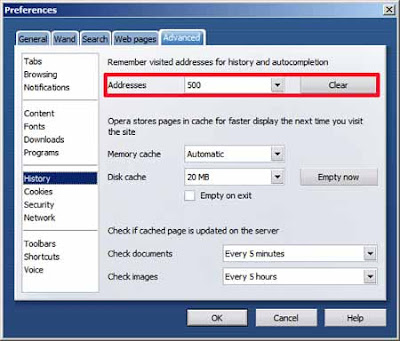

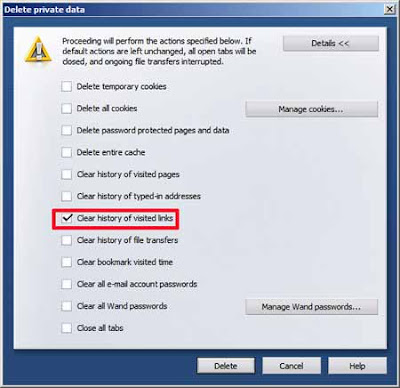
The only surefire way with Opera is to delete the visited links history specifically, but fortunately it lets you do just that (though I found that sometimes even that didn't work, I had to delete visited links history, then close and restart Opera). It's the only popular browser that enables such selectivity:

Internet Explorer
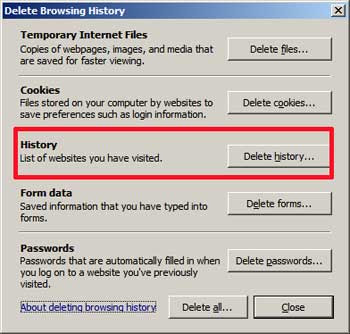
You can delete your history in Internet Explorer (in IE 7 Tools, Internet Options, under Browsing History select Delete):

And also you can limit the number of days IE should keep your visited pages in history (in IE 7 Tools, Internet Options, under Browsing History select Settings, see the History section).

Killing or not saving history of visited pages deals with visited links history too. But you can't selectively delete just visited links history, unlike with Opera.
Safari
I don't have a Mac, but reportedly Spyjax doesn't work in Safari, which is good news for Mac users' privacy. Can anyone confirm further?
Firefox
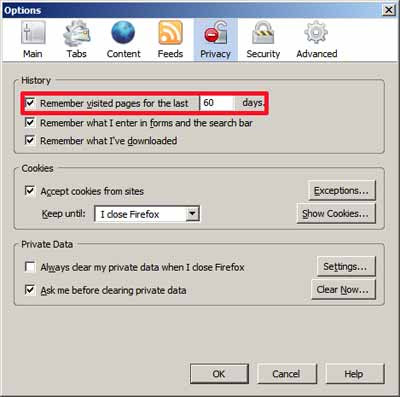
Telling Fox to remember 0 days of visited pages doesn't automatically kill your existing history until a restart of Firefox (so you may have to manually delete that, or individual items from that, if you want to).

But disabling saving of history (Tools, Options) does seem to stop it from saving the history of visited links. And deleting the history, or individual items from the history, also seems to delete the visited links history for those pages too. So that's good.


Even better, with Firefox you can get the free Stanford SafeHistory extension (how to install Firefox extensions - was on Greasemonkey, but applies generally). This "protects your privacy by silently defending against visited-link-based tracking techniques. It allows offsite visited links to be marked only if the browser's history database contains a record of the link being followed from the current site." or, as per the description on the Mozilla site (though the software is more uptodate on the SafeHistory site):
Restricts the marking of visited links on the basis of the originating document, defending against web privacy attacks that remote sites can use to determine your browser history at other sites. A link on a.com pointing at b.com will only be marked visited if you previously visited the b.com page with a referrer in the domain of a.com. On-site links work normally. Checks cookie settings (allow, originating site only, deny) to determine your desired privacy level (segmented by origin, don't mark links visited in offsite frames, or never mark links visited).

Once you install it, you can access SafeHistory from the Privacy pane of your Tools, Options - although it's just one extra box to tick:
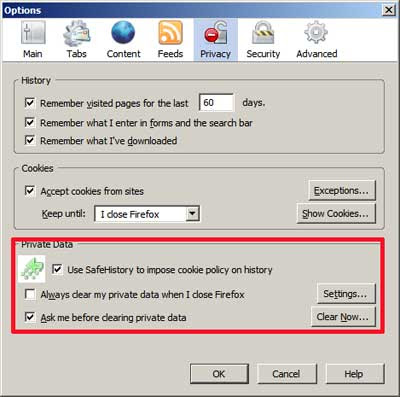

You can't selectively delete or not save just visted links history, but with SafeHistory you shouldn't need to.

Conclusions

Different browsers offer different levels of control as to the saving and deletion of your browsing history. As I mentioned earlier, to defend yourself in this context there seem to be 3 possible ways:
  • don't save your visited links history
  • delete your visited links history, or
  • don't let websites check your visited links history.
Choosing not to save your visited links history, just your visited links history, isn't currently possible with the most popular browsers (I'm not including Safari as I don't know much about it, sorry). You have to disable saving the history of visited pages too. That's pretty drastic. I use my history of visited pages all the time, and I don't want to lose access to it.

Of course you could turn off history saving altogether, and try to find your previously visited pages when you need to via something like Google Desktop Search (free with the Google Pack of Google-recommended software - ). Desktop search software automatically indexes webpages you visit and saves a searchable index on your computer separately from your browser history. But I've not found GDS to be reliable or consistent in capturing sites I visit via my main browser, Firefox.

Furthermore, in Opera 9 turning off remembering the history of visited pages won't help at all, because Opera still remembers your visited links history (that's just how Opera is) - so Spyjax can still spy on you.

Is deleting visited links history an option? In IE and Firefox you can't do that without deleting your entire history, or at least your "visited pages" history for the particular page or site. Plus, you have to remember to do the deletion periodically, and even with automatic calendar reminders or the like it's a bit of a pain. Opera does let you delete only your visited links history while preserving your history of visited pages, but that sometimes needs a restart of Opera to work for sure, and again you have to remember to clear out the visited links from time to time; and it's all too easy to forget or stop bothering.

What about not letting websites check your visited links history via Spyjax or similar? You could turn off Javascript in your browser altogether. But again that's pretty drastic.

My personal preferred solution is to use Firefox and the free extension SafeHistory to block other sites from checking your visited links. So, yet again, my favourite browser wins out. (If you don't already have Firefox - ).

(Via sl0wdjin's Clipmark)