Speed tip: if you're a faster PC go go
keyboard person like me and use
Internet Explorer, try installing
this speedup searching hack for Internet Explorer, for quicker access to Google. I use Ctrl-l to call up the address bar then type g then space then my search, for very quick results (or you can just click in the address bar then type the keyword for the site you want to search, space, then the search term, if you prefer). So I use w for searching
Wikipedia without having to go to that site first, and so on.
This "one letter search" or "shortcut search" trick works for searching your favourite sites other than Google too e.g.Wikipedia or
Amazon, and you can use more than one letter to trigger your search if you wish, as long as it's not already in use. For example I use "rt" for searching
Rottentomatoes.com for movie reviews, and "f" for
Google Product Search, formerly Froogle, for price comparisons of stuff I want to buy.
In
Firefox and
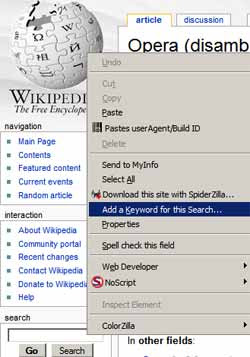
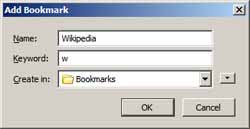
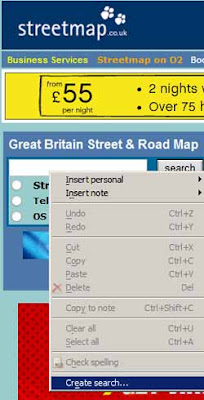
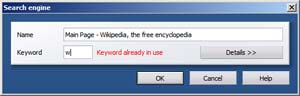
Opera the same feature comes built in - just go to the Wikipedia or your other fave search page, rightclick in the search box, choose "Add a keyword for this search" (or "Create search" in Opera) and type your info including the chosen keyword like w, if it's not already taken (you can use more than one letter for a keyword like "wi").
Creating search in Firefox
Creating search in Opera
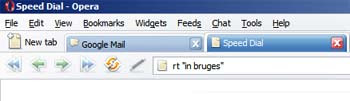
Carrying out the search
Then to do the search, go to the browser address bar (or use Ctrl l hotkey which I find quicker), type in the keyword, space and your search terms, and hit Enter or Go.
You can later edit your shortcut searches too (
Firefox: the search is a bookmark, find it, rightclick it, choose Properties; in
Opera: menu Tools, Preferences, Search tab), so it's well worth setting up search shortcuts for the main sites you regularly search.
Tags:
tools, tricks, productivity, keyboard, hotkeys, keyboard shortcuts, shortcuts, searching, searches, Improbulus, A Consuming Experience
 Did you know Google's search page includes an online calculator & converter? One of my very IT literate friends didn't know this trick, so I thought I'd post this tip.


