Pages

Friday, 27 April 2012

Word footnotes - how to update cross-references to footnotes


In Microsoft Word, if you insert cross-references to footnote numbers and later add or delete any footnotes, the footnote numbering as shown in the cross-references can be wrong.

You can click the cross-reference and be taken to the right footnote, but the footnote numbers that display and print will be the 'old' ones.

Here's a tip on how to fix that problem - it took me ages to find the solution.

You need to:

  1. click inside the footnotes area first
  2. press Ctrl a (hold down the Ctrl key then tap the "a" key then release both)
  3. tap the F9 key, and
  4. OK it all.

This was in Word 2010, but I believe it's the same for Word 2007 etc too.

Monday, 16 April 2012

Internet password security madness?


We all know that password choice, although notoriously tricky, is vital for online or offline computer security. Longer passwords, indeed whole phrases not just words, are better against brute force attacks. Using varied types of characters should help make passwords stronger, ie mixing letters, numbers and symbols. There are tools like passphrase generators too.

So someone please, please tell me, what on earth was Barclays thinking when it came up with the following requirements for Barclaycard customers' "memorable word"? Yes I know it's not a password, but it's similar.

image

Note the length limitation - only 8 letters max - and you have to count them too to make sure you have more than 6. They positively ban the use of numbers / digits and symbols. (It doesn't say numbers are banned, but they are - I tried).

No consecutive letters allowed means that if you wanted to use, say "Absalom", that would be disallowed, although my main beef is that the fact that even 2 consecutive letters aren't possible is not at all clear from Barclays' example. "Absalom" won't be permitted because it contains an "a" and a "b", in a row. So customers can go mad trying to think of words that will work. Forget words that contain "de", for instance. Abd nothing Afghanistan-like allowed, not to mention Klingon-related! Now, that's not having a calming effect on customers, is it?

As for forbidding the use of the same character more than once in a row, it's well known to those interested in password security that the first word below is more secure, as well as more memorable, than the second:

D0g.....................

PrXyc.N(n4k77#L!eVdAfp9

Barclays also require users to remember a code - and it's numbers only, and limited to 6 characters. Another frustrated customer has blogged about the whole range of difficulties thrown up; take a look for more hair-tearing requirements. If we had to jump through any more hoops we'd be hulaing. Or something.

Perhaps financial institutions think that as long as requiring several tokens / items or questions is good enough to protect them (though not necessarily customers), that'll do - however hard it may be for customers to think up or remember them. In the USA, apparently requiring passwords and a few security questions may be considered to constitute adequate security measures for banks to take.

Now, Barclays say they want their online banking to be "user-friendly", and they've tried to take other steps on the security front, but really, this is ridiculous. It seems to be exactly the sort of thing security expert Bruce Schneier calls "security theatre" - stuff to make customers and others think they care about security and are taking decent security measures, when actually they're not necessarily doing that. As legal expert Nicholas Bohm and others have repeatedly argued, things won't improve unless the banks and others who control the infrastructure and systems truly bear the risk of security breaches or fraud, instead of being able to (as currently) offload the risk onto customers and merchants.

As for Barclays' "anti-fraud" technology, whoever devised their algorithm should - well I'm too polite to say what, but you get the drift. For instance, for a particular subscription, I have a regular monthly debit to my credit card, same amount, same payee. Every month. Why on earth should that transaction suddenly be thought suspicious one day, when it hasn't been for the LAST X MONTHS!!? I buy stuff from Amazon regularly, so what's wrong with that? Why should Barclays query it?

And what about extremely busy people who only have time to go shopping once in a while, and buy lots of stuff in one day in the Boxing Day sales - ooh, that's 2 pairs of shoes, a coat and 3 tops all bought all on the same day, that's not "normal", let's just nuke 'em all! And then, the icing on the cake, it blocks all transactions on the card automatically, so if you'd tried to pay a bill just before its deadline, tough luck, Barclays may now have made you overdue.

But back to passwords. Lest you think this rant is directed too much at just one target, let me finish with this example from UK government websites, from a few months back.

Businesslink - no symbols allowed.

passwordmadness01

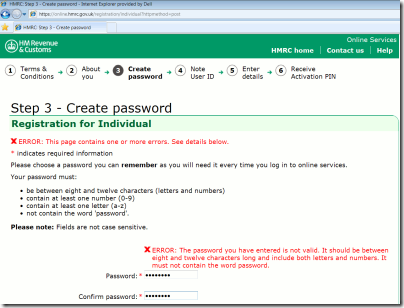
HM Revenue & Customs, yep the good ol' taxman - password limited to 12 characters only.
password-hmrc

Sites like these should know better, one might think. I'm not sure what it would take to get the message across. If a user's account is compromised because their password was too easy to guess due to the length/symbol etc limitations, who's going to carry the can?

Monday, 16 January 2012

How to network Windows 7 and Vista computers to share files, folders & printers from the Windows 7 PC


If you've had trouble networking Windows 7 and Vista computers, and even when you've turned password protection off it keeps asking for a username and password when trying to access files remotely from the Windows 7 PC but won't let you login and says "Network logon failure unknown user name or bad password" or similar, this post suggests some possible solutions. Note that I've only looked at sharing specific folders on a Windows 7 PC to a Vista PC (and not vice versa).

To fix this problem, this is what worked for me, after steps like these didn't work. This gave the clue! Short answer: make sure you've enabled the Guest account, or (better) create an account on the Windows 7 computer for network sharing purposes.

Step by step:

  1. First, make sure you've done all these essential preliminary steps (though I'd leave out the firewall settings for now), ie: put both computers on the same workgroup (any name you want for the workgroup, as long as it's the same for both computers); set their network locations to Home; turned on network discovery, file and printer sharing, and public folder sharing.

    image

    image
  2. Then:
    1. EITHER:
      1. in the settings above, turn OFF "Password protected sharing"
      2. turn ON the guest account (it was off on my Windows 7 computer by default)
      3. then, to access shared stuff from the other computer, go to Network (in Computer or Windows Explorer), doubleclick the name of the Windows 7 computer, and when it asks for username and password, just type in 'guest' for the username (or if that doesn't work, try YourWindows7ComputerName\guest), but leave the password blank, tick the box below if you want to save having to re-enter details during the same session, then hit OK.
      4. BIG RED WARNING - note that this is not very secure as it adds a "guest" account onto the Windows 7 computer which anyone can use to access that computer without a password, including accessing attached external hard drives. So, either rename the guest account or (better yet) secure the guest account, which may be a bit involved, or just create a special account on the Windows 7 computer as per 2.2. below, which may be easier.
    2. OR, alternatively, and this better for security:
      1. create another account on the Windows 7 computer with username/password, just for networked file and printer sharing
      2. on the other computer, again in Computer or Windows Explorer go to Network and doubleclick the name of the Windows 7 Computer; when the login prompt pops up, enter the username and password you created.
        1. note: the box to tick to remember your credentials shouldn't be there for Vista Home versions, because even if if you tick it, it won't remember your user/password (cached credentials) for network shares, beyond the session. Next time you reboot or restart the Vista computer, you'll just have to enter them all over again if you want to access stuff shared from your Windows 7 computer.
          Easiest workaround: create the special account on the Windows 7 computer with the same username/password as on the Vista computer.
        2. this (go to the "Concealing…" section) shows how to hide the special account from the logon screen on the Windows 7 computer if you wish, so that it's not visible on the Windows 7 PC when you  turn it on
      3. Note that the username may need to be in the form "Windows 7 computer name\username" (without the quotes)
      4. In this case, of course, you should turn "Password protected file sharing" in step 1 back to ON.

        Now if, after doing that, on the other computer you can see the shared files and folders on the Windows 7 computer, but on trying to open them you can't, and get a message like "The Network Path Cannot be Found - Error code 0x80070035", just try this Netbios fix on the other computer (NOT the Windows 7 one). Step 2 of that worked for me, no reboot needed and no need to tinker with firewalls!

Important - before the other computer can see files etc on the Windows 7 computer, you still have to take some extra steps on the Windows 7 computer first:

  1. Set the properties of the folders or files that you want to share, so that they're Shared.

    And don't forget to "Limit the number of simultaneous users" to the maximum number of computers in your network - it defaults to 20!

    image
  2. Also, check your printers to make sure the ones you want to share are shared, and share them if necessary:
    1. Go to Start, Devices and Printers
    2. Rightclick on the name of the printer you want to share, and go to Printer properties. IMPORTANT: don't go to Properties, don't go to Printing preferences, go to Printer properties!

      image
    3. Pick your printer, if more than one, and go to the Sharing tab and tick "Share this printer" - give it an intelligible name, and OK.
    4. On the Vista computer, under Network you should now see the printers - just doubleclick on a printer to install it (if necessary).