Pages

Showing posts with label Google. Show all posts

Wednesday, 5 February 2014

Chrome - secure your microphone from spying sites!


If you visit certain sites using Google's Chrome browser, and give the site permission to use your computer's microphone (to use speech recognition navigation etc), a researcher has discovered that the website could keep your microphone on even when you've left the site and think it's off - with no warning indicator that it's still on.

To secure your computer and stop sites using this vulnerability to eavesdrop on you using your mic, El Reg has suggested that you simply disable websites' access to your mic and camara. Here's how to do that, with pics:

1. In Chrome, go to the Settings menu (top right, click the 3 horizontal lines icon), then choose the Settings item from the drop down.

image

2. The Settings page comes up. Scroll all the way down to the end, and click "Show advanced settings":

image

3. Now in the "Privacy" section that appears (which in my view is an essential basic requirement and not an "advanced" setting, but another time…), click the "Content settings button:

image

4. Then you have to scroll down again to find the Media section, and make sure you select "Do not allow sites to access my camera and microphone", then click the "Done" button.

image

That's it! Obviously you'll have to change it if you actually want a particular site to access them, but remember to change it back afterwards.

I rarely use Chrome myself (here's reasons why I don't use Chrome), and this sort of security issue isn't exactly going to persuade me to change my mind!

Monday, 24 June 2013

Stop spam event invites displaying in Google Calendar


Have you had events appear in your Google Calendar from people that you don't know? Anything from fraudulent requests for money to other stuff like pron. They appear without your accepting the invite, taking up space in your calendar, and you can't delete them without hitting "Decline". A real annoyance.

I recently helped a friend troubleshoot to prevent such spam event invitations showing up in her Google Calendar.

Others have already produced howtos, so I'm posting links to some pages providing the solution to stopping spam invites from appearing in your Google Calendar - the main fix being to set "Automatically add invitations to my calendar" to "No":

  • with screenshot - the best one, as it has a screenshot that also mentions disabling "Show events you have declined" (ie set that to "No"), which may help
  • similar advice

This way you'll still get emails of invitations, which you can choose to accept or decline (or 'maybe'), but the events won't automatically get added to your diary even before you'd chosen to take any of those actions.

But I'd add one more comment. Some people have suggested hitting "Decline" on the invites in question, to stop them from displaying in your Google Calendar, ie get rid of the spam events completely from your calendar.

My reservation about that is that it may send an email back to the spammer, so that they know that your Gmail address is active, and can keep on sending you spam calendar invitations or spam email!

When I set "Automatically add invitations…" to "No" for my friend, doing that immediately stopped the spam event from showing in her Google Calendar. And it didn't send the spammer anything to prompt them to keep pushing spam calendar invites to her!

So I'd recommend trying to disable "Automatically add.." first, before you start hitting "Decline" or "Reject" or the like on the spam event. And only if it doesn't work, consider doing that.

Monday, 30 July 2012

Nexus 7 - how to install Flash to view BBC iPlayer & other sites


Some websites, like BBC iPlayer, won't work on your Google / Asus Nexus 7. This post gives step by step instructions for beginners on how to get Flash on your Nexus 7 so you can watch or listen to BBC iPlayer TV or radio, and play videos or music on other websites that require Flash like Demand Five or 4od (the ITV Player app does work on the Nexus 7 but the iPlayer app isn't compatible yet).

The tips below represent the easiest solution I've found to add or enable Flash quickly on your Nexus 7, without having to "root" your device (as eg this post suggests) or take any other more complicated steps, thanks to this helpful post and others I found. (There's a risk that rooting may void your warranty.) I didn't need to install an older file Flash apk then update it to a newer one as mentioned here, it just worked with one file, the latest one.

You'll also then need to install and use a compatible browser, as the Google Chrome browser that's provided as standard with the Nexus 7 won't play Flash movies or music etc, even after you've installed Flash. I also explain how to install and use some alternative browsers, below. The problem and background are at the very end, I imagine readers will want the howto first!

How to install Flash on the Nexus 7 - the best way!

So here's the best workaround to solve the problem of Flash not working on the Nexus 7. (It's not really troubleshooting or fixing a bug, it's a workaround - for a situation that was deliberately intended by product suppliers.)

The Nexus 7 is set up as standard to let users install apps only via the Google Play Store. If you want to install an app like the Flash Player using an app installation file that you've dwnloaded, it won't let you do that - unless you change a default setting.

So we'll change that setting first, then download the Flash installation file, then install it on the device direct from the file- aka "sideloading". (In Windows, files to install programs / applications usually end with .exe or .msi - in Android, the operating system used by the Nexus 7, they end with .apk).

  1. (Optional, but may make life easier)  On your Nexus s7, tap the Google Play store icon (the shopping bag icon in your Favorites tray):

    playIconSearch (magnifying glass icon) to find and install a file manager app like ES File Explorer File Manager, Astro File Manager or File Manager HD.

    (For beginners - if you view this blog post in the standard Chrome browser on your Nexus 7, tapping the links above will take you straight there, and you can then tap the Install button to install the app.)
  2. Go to the Settings on your Nexus 7 - ie swipe down the notification shade from the top of the screen, and tap the Settings icon, outlined in red blow.

    notificationShadeSettingsIcon
  3. In the PERSONAL section, tap the word "Security":

    settingsSecurityOutlined
  4. In the Security settings screen, under the DEVICE ADMINISTRATION SECTION tick "Unknown Sources" (this is to let you install an app from a file on your Nexus 7 - otherwise, it just won't let you). Tap OK to confirm you really want to change this setting:

    securityUnknownSources
  5. Now tap open a browser on your Nexus 7, it's easiest to use the Chrome browser that's provided as standard:

    chrome
  6. In your Nexus 7 browser, download the Adobe Flash Player app installation file by tapping this link (the link just given is the direct link to the file that's attached to the bottom of this helpful forum post - if tapping the direct installation file link in your browser doesn't work, you could try going to that forum post and then tapping on the com.adobe.flashplayer-2.apk link from there). A message should flash up very briefly on screen about the download.

    Note: here are some other links from which you may be able to download that apk file, though I've not tried them myself.
  7. Now, find the downloaded apk file on your Nexus 7 and tap it to install Flash. There are two ways:
    1. Swipe down from the top of the screen to open your notification shade, then tap on the com.adobe.flashplayer-2.apk  "Download complete" notification, and tap to confirm the installation:
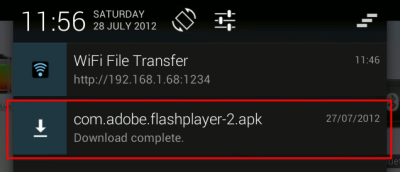
      notificationDownloaded
      OR
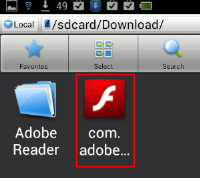
    2. Open the file manager you installed in step 1, browse to the Download folder (a sub-folder of the "sdcard" folder), then tap on the com.adobe.flashplayer-2.apk file and confirm the installation. Here's some screenshots using ES File Explorer:
      downloadFolder
      apkInFolder
  8. Now go back to the Security settings to UNtick the "Unknown sources" setting again, see steps 2 to 2, for security. Whenever you want to install an app from an apk file in future, you can just enable that setting again, install the app, then disable it after installation.)
  9. Note: if tapping the downloaded apk file in step 7 didn't work, try installing an app installer like Fast Installer, then tapping the apk file again. But it should work.

How to play media from Flash sites on the Nexus 7 - use browsers that support Flash!

To actually view Flash sites after you've installed Flash on your Nexus 7, the supplied Chrome browser won't work. That's the way it is, and Google won't be supporting Flash in its Android Chrome browser.

So you have to install a third party browser, and use that in order to view iPlayer or other sites that require Flash.

2 browsers I've tried so far work: Firefox Alpha (Mozilla Aurora) and xScope (free and paid) - hat tip. (Again, those links should take you direct to the installation pages where you can tap to install them.)

But be warned - these are all workarounds, Flash is not officially supported on Android Jelly Bean (the Nexus 7's operating system), so you need to be prepared for random crashes when browsing Flash sites, having to close and restart your browser etc - especially if you try to go to full screen mode (just resizing the page is safest), or leave the page after you've started playing the media, or even just try to pause a video.

Also, different browsers seem to play differently on different sites. So if your favourite Flash site doesn't work well with eg Firefox Beta, try Aurora or XScope etc instead. So far, iPlayer generally works well on Aurora. But different sites eg Demand Five  or 4od may be better in another browser - you just need to try them out (bearing in mind that going full screen may crash the browser, although again iPlayer in Aurora seems relatively OK).

How to use Mozilla Firefox Beta to view Flash sites

Firefox "proper" won't install from the Play Store on the Nexus 7 just yet.

But Firefox Beta, which you can install from the Play Store using that link, does work. Don't worry if you installed Firefox Beta before trying to install Flash Player - all this should still work.

I should note first though that Firefox Alpha, Aurora, seems more stable with Flash, so it may be best to use that for viewing Flash sites - I cover Aurora later, it's very similar.

To use Firefox with Flash sites, first you have to check its Settings to make sure Flash is always enabled, then you need to ensure that iPlayer and other sites won't divert you to the mobile "no Flash" version when you try to browse there.

Here are step by step instructions on how to do that:

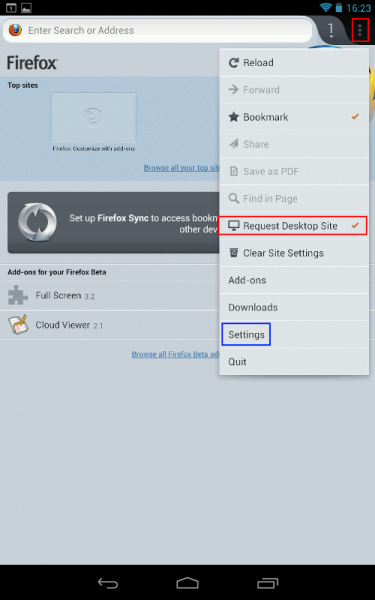
  1. Open Firefox, go to the Menu (3 vertical squares, top right) and choose Settings - outlined in blue below:

    firefoxDesktopTicked
     
  2. In the Settings, under the CONTENT section, tap Plugins:

    firefoxPlugins
     
  3. Then make sure Enabled OR "Tap to play" is selected (ie NOT "Disabled"), and you can use the Back navigation button to return to the browser.

    What's the difference? "Tap to play" is more secure; if you pick "Enabled" and visit a malicious website it could automatically run Flash and install malware on your device. This may be more likely with desktop computers than portable devices and apparently it has never happened with Android, although malware has been disguised as an Android Flash Player. But still, if you want to play it safe, use "Tap to play" - then, you need to positively tap on the video or audio to play it, but you'd only do that on sites you trust, right..? Personally I went for "Enabled", but it's at your own risk and all that.

    firefoxPlugins2
  4. Highly recommended: in Firefox, browse to the Phony extension's webpage by tapping that link I gave, then tap "Add to Firefox" to install that add-on.
    1. Now, open the Firefox Menu (the 3 vertical squares), and there will be a new Phony item in the list. Tap on the Phony menu item, then under "Select User Agent" tap the word "Default":
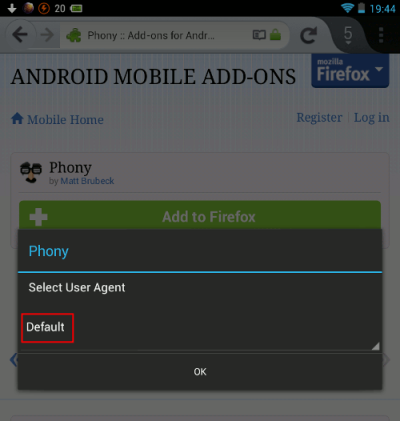
      phony1
    2. A list will open up - find "Desktop Firefox", tap on that, then tap "OK".
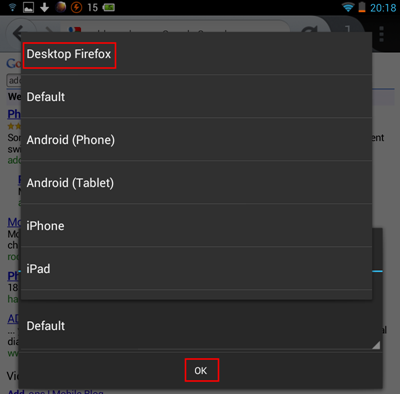
      phony2
    3. Now go back to the Menu and choose Quit at the end to close Firefox. (That's because I found I had to restart Firefox before Phony would work.) Then re-open Firefox, and browse away on Flash sites!
  5. Alternative: if you use Flash sites only occasionally and don't want to install Phony, before visiting the site you must first go to the Menu and make sure "Request Desktop Site" is ticked (outlined in red below). Then in the same tab of the browser (do NOT open a new tab), browse to BBC iPlayer or another Flash site, and Flash movies or audio should then hopefully play.
    The downside of this is that, without Phony, you must remember to tick "Request Desktop Site") every single time in a tab, before you visit a Flash site in that tab, as it won't automatically "save" that preference.
    Also, on Firefox Beta, before installing Phony and setting it to "Desktop Firefox" I couldn't get BBC iPlayer radio shows (listen again) to play at all, although it would play iPlayer television programmes.
    Finally, with BBC iPlayer at least, even after ticking "Request Desktop Site" you may have to keep trying to reload the page or going to it again via a link on a search engine results page, as sometimes it still diverts you to the annoying "not supported" page shown towards the end of this post. This doesn't happen with Phony. Which is why I highly recommend using it!
    firefoxDesktopTicked 
  6. Note: sometimes, on some sites, you will still have to tap on the video or audio in order to kickstart Flash, even if you've selected "Enabled" instead of "Tap to play".
  7. With iPlayer TV: don't use the "popup" icon (the two overlapping rectangles) as that won't work - instead, use the Full screen icon, outlined in red below:

    iPlayericons
  8. Feature request: if only Mozilla would provide a setting for Firefox mobile to permanently request desktop sites so a third party add-on wasn't needed! (and in portrait view moved the Menu button to the navigation bar at the bottom - I keep hitting tabs inadvertently when trying to get to the Menu in portrait orientation!)
  9. Full screen, and avoiding crashes:  updated: be patient and don't tap on the video before it has finished loading and shows the play arrow on the video itself, otherwise it may crash. Also remember, it's best generally to avoid full screen mode. Full screen may work sometimes with iPlayer, but with other UK TV sites like 4od etc, it may crash the browser, and you'll have to close it and restart it again! Workaround - the best fix to get close to full screen, from combining tips and tricks from a couple of forum postings, is this:
    1. on your Nexus 7, download and install the free Full Screen add-on
    2. when you need full screen, activate the add-on through the Firefox menu (you may need to scroll down the menu items list to find "Full screen")
    3. start playing the video, and then double tap on the video to enlarge it almost to full screen
    4. to come out of full screen, press and hold (aka "long press") on the webpage and choose "Exit" out of full screen.

How to use xScope for Flash sites

xScope (free and paid versions) is another browser option which needs fewer steps than Firefox to set up and use.

Once you've installed and opened xScope, you just need to check its Settings to make sure Flash is enabled. Here's how:

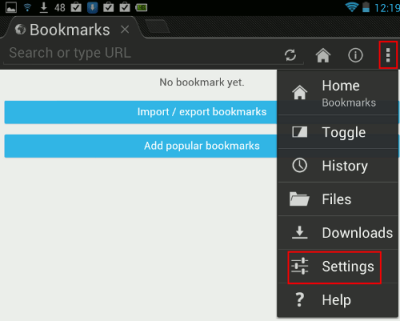
  1. Go to xScope's Settings by tapping the menu icon (3 vertical squares, top right) then tap Settings:
    xscopeMenu
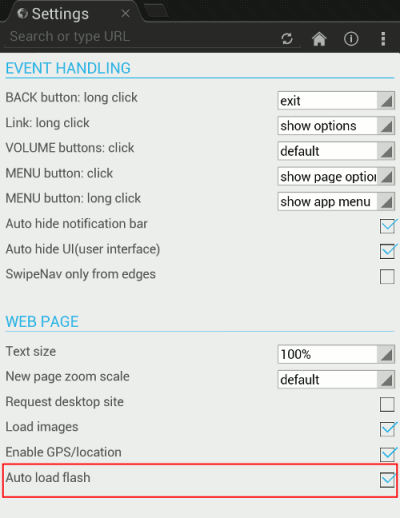
  2. On the xScope Settings page, in the "WEB PAGE" section, I chose to tick "Auto load flash" (but bear in mind the note under the Firefox Beta section above about the risks of auto-loading flash if you visit a malicious website - you have been warned!):
    xscopeFlashSetting
  3. You  can now visit BBC iPlayer and other Flash-using sites via xScope, and Flash should just work. But note that, sometimes, as with Firefox, you do still have to tap on the video or audio in order to kickstart Flash. Or, of course, if you haven't set Flash to auto-load. And remember to avoid full screen mode. 
  4. One more precaution: it might be best to stop auto-update for xScope, in case a future version of the browser comes out that disables Flash. (This is a real risk - the Dolphin browser for example no longer supports Flash, whereas an earlier version of it does, though on some pages it may crash on switching to full screen). So here's how to disable the auto-update:
    1. Open the Google Play store on your Nexus 7 (shopping bag icon, see step 1), then get to your lists of installed apps by tapping the down arrow icon at the top:

      playApps
    2. Now in the apps list, tap on the name of the app you need to change auto-update for, in this case xScope:

      playXscope
    3. Finally, on the xScope screen in the Play store, UNtick "Allow Automatic Updating". (You can retick it again if you're absolutely sure the developer won't disable Flash support in a future release!):

      xScopeAutoUpdating


What about other browsers, do they support Flash?

You can also use Firefox Alpha (Aurora) - just download its apk file from this page (the one that worked for me was called fennec-16.0a2.en-US.android-arm.apk - version 14 didn't work, for instance). Then install it in the same way as you installed Adobe Flash Player above, making sure you tick the "Unknown sources" security setting first, check the Flash setting, and install and set the Phony add-on as with Firefox Beta (or check "Request Desktop Site" is ticked every time before you visit a Flash site).

Here are screenshots for Firefox Aurora, it's much the same as with Beta, but it's your choice as to "Tap to play" or "Enabled", and don't forget you need to tick Request Desktop Site every single time:

auroraMenu

auroraPlugins1

auroraPlugins2

An earlier version of the Dolphin browser has been mentioned above as working, and I've checked it works with iPlayer radio  - but it crashes if you try to go to full screen with iPlayer video or YouTube, and presumably other sites too. (If you already have Dolphin you should uninstall it first before installing that earlier version - go to the same screen for Dolphin as for automatic updating, above, and tap Uninstall.)

Maxthon was reported to work but for me unfortunately the HD tablet version kept crashing on trying to pause a video, or just trying to access the menu or settings. The mobile (non-HD) version of Maxthon did work, and you can also in Maxthon enable Flash automatically (via its menu - bottom right navigation bar, choose Options, Browser settings, change "Flash on demand" to "Always on") - similar to what I've shown for the browsers above. Otherwise, you'd have to tap on a Flash video or audio in order to play it.

Tip: with Maxthon mobile in landscape view, you can't see the address bar in which to type a URL - you have to swipe down the grey horizontal lines in the curve, kinda like a tab, outlined in red below:maxthonHoriz1Then voila you can see the address bar!:

maxthonHoriz2

Unfortunately I couldn't get Flash to work in either Opera Mini or Opera Mobile.

While Puffin has been said to work, I personally wouldn't use it as (1) they've enabled Flash on the free version only for the London Olympics period, so Flash may stop working in it after that, and (2) BBC iPlayer radio works in Puffin, but if I try iPlayer TV, it won't work as the site then seems to think I'm not in the UK (whereas I am):

puffinNoGo

The Boat browser also reportedly works (in the Settings check under Page content settings, Enable flash/plug-ins first) - but for me it always crashed after starting to play iPlayer video.

Sleipnir wouldn't work for me at all, even with all plug-ins enabled.

If anyone knows of other browsers that reliably support Flash on the Nexus 7, please let me know.

The problem - BBC iPlayer and other Flash sites don't work on Nexus 7 out of the box!

Your shiny new Google / Asus Nexus 7 unfortunately won't play BBC iPlayer video or audio, or indeed media on other websites that use Adobe Flash. You may get screens like these:

"Your phone does not support BBC iPlayer":

iPlayerNo

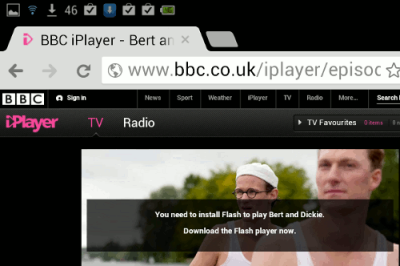
Or you may get, "You need to install Flash":
chromeNeedsFlash

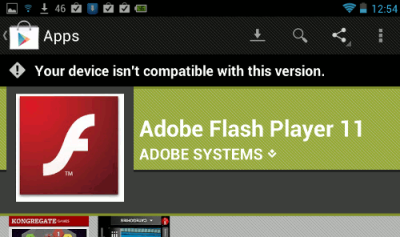
But… if you then try to install Flash Player from the Play Store, you may get… "Your device isn't compatible with this version"!:
playFlashNotCompatible

Background to the Nexus 7 Flash issue

A big disappointment with Google's Nexus 7 Android tablet is this lack of support for Flash, which is used by BBC iPlayer and many other websites for displaying videos or playing music or other audio.

Adobe recently withdrew support for Flash on Android devices and other mobile browsers, although this move was presaged in late 2011. If you try to install Adobe's Flash Player browser plugin from the Google Play Store to your Nexus 7, it won't let you.

While that's really down to Adobe, not Google, it's still a pity that Google didn't provide at least some support for Flash in its Chrome browser in the Nexus 7, given that the tablet is being heavily publicised as a media player - that omission is in my view a Google Gaffe. Indeed, a friend told me that being able to watch or listen to BBC iPlayer TV or radio ("listen again") in bed was a major reason why he'd ordered a Nexus 7, and I suspect the same goes for many other Nexus 7 buyers.

Adobe envisaged that the ultimate solution to this issue would be for websites to eventually move to providing their media using the open HTML5 standard, instead of using Flash.

Unfortunately, that's going to take some time - there are real problems today because many, if not most, websites on which people generally want to view videos or audio don't use HTML 5, but still rely on Flash. So users have been left in the lurch, until sites update their content to migrate to using HTML 5.

Thursday, 26 July 2012

Google Nexus 7 - how to use with Bluetooth keyboard (iGo Stowaway Ultra Slim Think Outside)


The Google / Asus Nexus 7 tablet is far more than just an Amazon Kindle Fire competitor. It works well with a Bluetooth keyboard too, making it an ideal computing device for working on the move if you're a business user who finds a laptop or even iPad too heavy to be truly portable (eg if you have a bad back). See the end of this post for the weight comparisons.

How to pair the Nexus 7 with a Bluetooth keyboard

First here's a video demo of using Bluetooth keyboard with Google Drive on Nexus 7; instructions on pairing are below:

Below are step by step instructions on how to pair the Nexus 7 with a Bluetooth keyboard  - in my case, an ancient iGo Stowaway Ultra Slim Think Outside keyboard, sadly now discontinued - originally bought for use with the Nokia N95 smartphone, it's that old!

  1. Make the keyboard discoverable - with the Stowaway, you hold down at the same time the Ctrl, left Fn (blue) and right Fn (green) keys. A green light will flash slowly above the T button to confirm it's working.
  2. On the Nexus 7 go into the Settings (swipe down from the top and tap the Settings icon):

    settingsIcon
  3. In the Settings screen, in the "Wireless and Networks" section, slide the Bluetooth switch from "OFF" to "ON".

    settings
  4. You'll see a blue On button against "Bluetooth", as well as the Bluetooth icon showing at the top right of the screen. Now, tap on the word "Bluetooth" (in the list on the left under "Wireless and Networks"), and you'll get the following screen. Tap "Search for Devices" at the top right.

    searchForDevices
  5. Under "Available devices", your keyboard's name should appear. Tap its name.
  6. The Nexus 7 should pop up a message with a 4-digit numeric code to enter on your keyboard.
  7. On your keyboard, enter the 4-digit code given, and hit the Enter key.
  8. They should now be paired, and you should be able to use the keyboard with Nexus 7 apps. Type away!

    keyboardBluetooth
  9. Tip: get a Bluetooth widget like the free Bluetooth OnOff so you can turn Bluetooth on and off quickly from your Home screen with one tap. (Obviously turning it off will save power when you're not using Bluetooth).

Why buy a Nexus 7 for portable working?

Just compare these weights:

  1. Nexus 7 (just 340 g) + iGo Stowaway Ultra Slim full-sized folding Bluetooth keyboard (160 g)
    = only 500 g.
  2. iPad 2 = 590 g - ie heavier than the above two items combined. Unfortunately the new iPad is even heavier, at 652 g.
  3. Microsoft's planned Surface tablet with built-in keyboard = 676 g for the lighter version (from the specifications).

So, it's the Nexus 7 for me, until someone produces a modern clamshell Psion 5mx with wi-fi and colour screen - my #1 wishlist item, it's still the best portable computer of all time, only 354 g including full touch-typable keyboard and batteries, and decent sized screen with zoom!

I strongly feel there's still a massive gap in the market for light, small form factor, full computers (my biggest gadget beef).

Weight, the first thing I check in specs, rarely gets mentioned in reviews, but it's an issue for some women, youngsters, and people with back problems who just can't physically carry around laptops, notebooks or even netbooks.

So it's heartening that it's not just me - the techie likes of certain Slashdot readers also consider size/weight first when buying a portable computer.

Wednesday, 25 July 2012

Nexus 7 - disable "No more room on this Home screen" message


noMoreRoom

When you add a new app to your Nexus 7 from the Google Play store, you may get the message "No more room on this Home screen" - even though there's actually lots of room for new icons on your Nexus 7's home screen! And, it still adds a shortcut icon for the new app to your home screen anyway(though you may have to swipe sideways to find the home screen that contains it).

This seems to be an issue with Google Play. Unfortunately I can't find an ideal solution. There are 2 workarounds:

  1. Live with it! Keep ignoring the message. (Which is what I've ended up doing). Or,
  2. You can get rid of the message, but this means that when you install a new app from Google Play, it won't add an icon for it to your home screen. Which might be OK for some…
    Here's how to stop "No more room on this home screen" from appearing when you add apps:
    1. Open Google Play by tapping its icon (outlined in red below)

      googlePlayIcon
    2. Open its menu (3 vertical dots, top right).
    3. Choose Settings.
    4. Finally, UNtick "Auto-add widgets", like so:

      autoAddWidgets

Someone has posted that after they unticked that setting and then re-ticked it, it prevented the "No more room on this home screen" message from recurring. However, that didn't work for me - after re-enabling that again, the irritating message reappeared. So I'm just living with it.

If anyone knows a permanent solution to this annoyance, please do share!

Monday, 23 July 2012

Nexus 7 review #2 - support - Google Goodness (on balance)


My brand new Google / Asus Nexus 7 was faulty (or rather, the charging unit or cable was).

Google's Nexus 7 support phone number for UK customers, for ease of reference is:
0800 328 6081

Also see:

Google Goodness: it's an 0800 number, free to call from a landline (though NOT from a mobile, still a major issue in the UK, and a big wishlist item for me). Thank you, Google - that beats premium rate 0870 or non-geographic (and still chargeable from a mobile) 0845 numbers!

Google Gaffe: Google may not have planned ahead enough for the volume of calls. I've had to call a couple of times now, and each time I had to wait in a queue for 45 minutes to an hour before I could talk to someone. Just as well it was a freefone number!

Google Gaffe 2: the support staff don't seem to have full knowledge or training about the Nexus 7, or remits across the spectrum of support issue - so you might get "It's another team that deals with that aspect", or "I didn't know the Nexus 7 Gmail app displayed emails against a grey background". I also got different (and conflicting) information on different occasions from different people. Less good. At least they're friendly and try to be helpful, without being over-familiar, long-winded or annoying (ahem Three!).

The good probably outweighs the gaffes here. Given that most support helplines charge you a fortune for the privilege of trying to sort out a problem with their product or service, Google's provision of an 0800 support number was enough to make me forgive the other issues.

So - it's +1 to Google for Nexus 7 support, overall. So far. I reserve final judgement until my replacement unit and return are fully sorted out!

Google Gaffes: Nexus 7 NoNo #1 - the packaging review!


I was excited to receive my shiny new Google / Asus Nexus 7, which most people will know by now is a high spec and great value 7" tablet using the open source Android operating system.

But I will admit, I had to get a strong 5' 7" tall friend to help push the inner box out of the sleeve. It was such a tight fit, I just couldn't do it by myself! I'm only 5' 2", and not the strongest of females. I didn't get wrap rage, but only because I managed to get help with the unpackaging.

The earlier stages of the unboxing weren't easy either. Luckily, I keep a trusty Stanley knife within easy reach of both kitchen and living room. I never unbox without it! But it couldn't help with the part where I had to somehow slide the inner box out of the sleeve. Thank goodness for strong friends!

I felt a little bit better when I saw that I wasn't the only customer who struggled - eg this Atlantic Wire article linked to from Slashdot. (And montage of unboxing troubles, embedded below!)

Monday, 18 June 2012

Sharing Google Analytics data with Google - & how to disable data sharing


The EU cookie law means all bloggers and websites have to be careful about cookies etc saved via their blogs or sites, even for personal rather than commerical blogs. I'll be blogging more about that soon, but that's the reason why I've got big Cookie and Privacy Policy links all over my blog now.

One issue that the cookie law doesn't specifically tackle, which I think is more important for privacy in practice, is one point about Google Analytics which, let's face it, is used by most or at least a vast number of blogs and sites.

The point is this. When a site adds Google Analytics code to its webpages, it's enabling Google to set cookies on the machines of the site's users, through which Google collects information about the users' browsing. Of course, the reason the site does this is so to enable it to view and analyse the metrics and statistics collected for it by Google, and Google provide some excellent analytics tools, reports and visualisations etc for that, all for free.

But the side effect of this is that Google gets the collected information too. It stores it on its own servers, and is able to use it - if you share it with Google. This data sharing is turned on by default. You have to take active steps to turn it off, if you don't want to share your Analytics data with Google (I'll explain how below).

Shouldn't whether a site shares analytics data with Google be more important than whether it uses cookies? Yes, we may all wonder that. For those who care more about controlling data usage than limting the mechanics of storing or retrieving, well, everything, here's the lowdown on Analytics data sharing.

Google Analytics data sharing

When you go to your Analytics settings there's a page (on which more below) all about "data sharing". The info on Google Analytics privacy is scattered around. Here are a few links (if anyone finds any I've missed please let me know):

What can Google do with your Analytics data?

The FAQs say:

What will Google do with my data?

Shared data will be used to improve the services we provide you and will help create more powerful features for you to choose from. As they become available, only those who share their data with Google will gain access to these services and features (e.g. benchmarking and an enhanced version of AdWords Conversion Optimizer). The DoubleClick Ad Planner Publisher Center will also offer greater insight to the customers who have opted in to share their data in Analytics and Ad Planner.

As for data sharing specifics:

What does it mean to share my Google Analytics data anonymously with Google and others?

If you only choose the anonymous data sharing option, Google will remove all identifiable information about your website, then combine that data with hundreds of other anonymous sites in comparable industries and report them in an aggregate form. Google will use this anonymous data to improve products and services and provide you with a benchmarking report.

What does it mean to share my Google Analytics data with Google products only?

If you choose to share your site's data, Google will use the data to improve the products and services we provide you. Additionally, only users who have opted to share their site's data with Google may use these new or improved services.

There's a bit more detail once you get to your Analytics settings data sharing page (on which more below). There are two types of sharing you can disable or enable:

1. With other Google products only optional

Enable enhanced ad features and an improved experience with AdWords, AdSense and other Google products by sharing your website's Google Analytics data with other Google services. Only Google services (no third parties) will be able to access your data.

Example Use:Google Conversion Optimizer

If you are an AdWords customer, selecting this option will allow you to use Conversion Optimizer once it is available, with the following key benefits:

- Meet your ROI objectives by automatically managing your bids according to maximum CPA goals.

- Minimize your conversion costs while saving your time.

2. Anonymously with Google and others optional

Enable benchmarking by sharing your website data in an anonymous form. Google will remove all identifiable information about your website, combine the data with hundreds of other anonymous sites in comparable industries and report aggregate trends in the benchmarking service.

Example Use: Google Analytics Industry Benchmarking

- Use Benchmarking to compare your site's performance with those of other websites in your industry.

- Pinpoint performance problems and estimate how much you can improve your site metrics.

How to disable Google Analytics data sharing

The data sharing overview says "Data sharing settings may be edited on the Account Settings page."

The trick is to get to that Account Settings page. After hours, OK certainly tens of minutes, of clicking around, I found it. It's the hardest settings page to find that I've ever had to deal with, I won't venture to suggest why…

So here's how to find the Account Settings page for data sharing (should work until Google changes it!).

  1. Log in to Google Analytics. You'll see something like this (but with your sites listed rather than mine, of course).

  2. UPDATE: there's an alternative, you can just click the Accounts tab on the right, then drill down on the page itself by clicking each account/sub-site etc if necessary, until you can see the Account Settings tab shown in step 7.
    Click the + against your site's name.


  3. Click the + against the "UA-whatever" link under that.
  4. Just keep going on the + signs till you've expanded it all, to find the site you want to change settings for.

  5. Click the site's name, under all that (in my case, it's ACE). You'll see something like what's below. On the right, click Admin.

  6. Now after "All Accounts >", along the top (ish), click the name of your site, the one where you want to disable sharing.

  7. Finally, click Account Settings.

  8. You're there at the Data Sharing settings page!

  9. Here you can UNtick either or both of the data sharing options. Then click Apply, and that's it.

The cynical might ask, how do you really know whether Google are in fact honouring that setting, if you disable sharing?

Well, you don't know, you'll just have to take on trust - but at least you've done the best you can, and hopefully that will make your use of Analytics more defensible from a cookie law viewpoint.

Tuesday, 15 May 2012

Thunderbird - public holidays won't display?


In my Thunderbird email app (with Lightning for calendaring), I'd subscribed to Google's public holidays calendar for the UK. but lately, holidays no longer show up. They used to display fine, but that's stopped working.

What finally sorted the problem for me, after many unsuccessful troubleshooting attempts to try to get the Google calendar to display, was a workaround rather than solution or fix, but it's good enough for me! So here's my tip to get round this issue, step by step:

  1. download the ICS calendar file for UK public holidays (or other holidays of your choice) from Apple, and save it on your computer
  2. in Thunderbird, go to the Events and Tasks menu, and choose Import
  3. navigate to the saved ICS file and Open it
  4. choose which calendar in Thunderbird you want to import the file to, and OK it
  5. the public holidays should show up properly, hooray!

This should work with Apple ICS files for other holidays or events too. I tried Google's ICS file for that calendar first but it doesn't contain the necessary info for importing.

Apple 1, Google 0.

(Google Calendars of public holidays may display properly in later versions of Thunderbird, but I've stuck with Thunderbird 9.0 because add-ons I need aren't compatible with later versions.)

Monday, 31 January 2011

Gmail: how to view all unread Inbox email easily


Here's how to see all your unread emails in at once in Gmail. I cover 2 alternative ways.
The first builds on Gmail's Priority Inbox feature.

How to set up Gmail to show priority emails and unread emails

This assumes you've already turned on the Priority Inbox feature.
  1. In Gmail, go to Settings.

  2. Click the Priority Inbox tab (1).


  3. In the Priority Inbox sections bit, item no. 3 probably reads "Empty" (2, above). Click on "Add section" (or the down arrow against that) for item no. 3, select Unread (3), then click Save Changes (bottom left) (4).

  4. Now it should look like this, with Unread ticked:


  5. From now on, when you go to your Priority Inbox in Gmail you'll see your email in sections or panels on the right, headed (going down) Important and Unread, Starred, Unread and Everything Else.
  6. The line with the Unread heading has a "View all" link on the right so you can click that to see all your (in my case very many) Unread emails, all at once:


To me this is much more useful than the standard "Everything else" that you get in this section with the standard Priority Inbox.

You can play around with this and display all the contents (up to the fixed max number of items for that pane) of a particular "folder" ie label in one of your panels too, eg the most recent 10 emails for label X. It's the "More options" bit of the Options.

How to see all unread emails in Gmail using Multiple Inboxes

Don't want to use the Priority Inbox? You can still set up a section in your normal Gmail Inbox that shows all unread emails.
  1. In Gmail, go to Settings, and click the Labs tab:


  2. Now find the bit that say Multiple Inboxes, and click "Enable" so there's a blue dot next to "Enable":


  3. Then scroll to the bottom of the page and click "Save changes".


  4. Now go back to Settings, and there'll be a tab for Multiple Inboxes. Click that.


  5. And you'll see something like this:

You can do what you like with that, more details below - but don't forget to Save changes when you're done. Basically, all this allows you to view your emails in a bunch of extra panes, whose contents are determined by Gmail searches. You can have up to 5 panes, numbered (internally by Gmail) 0 to 4.

The default when you first set up Multiple Inboxes is to show your starred email then draft emails, above your normal Inbox, as in the pic above. But you can change that.

Unlike the Priority Inbox, in the "Maximum page size" section of the Multiple Inboxes settings you can choose exactly how many emails you want to show per pane (with Priority Inbox the choice is limited to one of 5, 25 or 50 only) - eg 12, if you wish. Multiple Inboxes doesn't let you set the number of emails individually so that it's different for each separate pane, but maybe that'll come one day.

"Extra panels positioning", as it says, lets you position your set of extra panels where you wish - above your normal Inbox is the standard, or you can have them below or to the right of the Inbox. The extra panes display in the order 0 to 4, as you'd expect.

What can you do with those panes? "Panel title" lets you give each a heading of your choice eg "Unread email", as you'd expect.

To display all unread email in your Inbox (and only unread incoming email), below your normal Inbox, do this (make the Panel title whatever you wish), then Save changes:


ie, in Pane 0 enter -
   is:unread in:inbox

and select "Below the inbox".

(In your Inbox, the "View all" link at the right edge of each pane's title will show you all unread incoming email, as with the Priority Inbox method above.)

To emulate the Priority Inbox but, in my view, make it much more useful, first turn on the Priority Inbox feature, and then do this in the "Search query" boxes of your Multiple Inboxes settings:
In Pane 0 enter -
   is:unread in:inbox is:important
In Pane 1 enter -
   is:starred -in:inbox
In Pane 2 enter -
   is:unread in:inbox

What this does is to put "important" email first (for what's treated "important" and how to influence that, see my post on the Priority Inbox).

Then starred email comes next, which is all starred email except for starred email that you've archived, hence the "-in:inbox". If however you want to see even archived starred email in that panel, just enter plain "is:starred" instead, without the in:inbox stuff.

Finally, the next pane shows all the unread email in your Inbox, without the clutter of all the read email in your Inbox. This is better than the usual Priority Inbox "Everything else" which shows in this pane, which isn't helpful at all, in my view.

Or, you can try this if you want all your starred (unarchived) emails on top, then your unread emails, then your "normal" inbox:
Pane 0 -
is:starred -in:inbox
Pane 1 -
is:unread in:inbox
Extra panels - Above the inbox.

Remember, you can make the panel titles anything you like. And you can experiment with other searches.

If in future you decide you don't want all this, to get rid of it again just go back to the Labs tab, click Disable against Multiple Inboxes and Save changes.