No matter how much you exercise, the more time you spend sitting, the higher your risk of dying prematurely. Sitting for long periods is seriously bad for your health.
It seems that if you want to live longer, not only should you do physical exercise, but you also need to cut down on how much time you spend sitting down. Even just getting out of your chair for a short stretch or brief walk, or just standing up for a change, can make a difference. Indeed sitting for 3 or 4 hours continuously can trigger negative physiological changes in your body. See e.g. articles in New York Times ("a study of people who sit for many hours found that those who took frequent small breaks — standing up to stretch or walk down the corridor — had smaller waists and better profiles for sugar and fat metabolism than those who did their sitting in long, uninterrupted chunks"), USA Today, Daily Mail, and ThomasNet (with more links).
I'm blogging this because further research in the US has just confirmed the same thing recently - "If you sit all day, you are in real trouble even if you exercise regularly". "Researchers say time spent sitting was independently associated with total mortality, regardless of physical activity level. They conclude that public health messages should promote both being physically active and reducing time spent sitting."
That means you, office workers, coders, gamers and inveterate surfers and film / video or TV addicts alike! And that means me too, of course.
So what to do?
Suggestion - use online timer
To help make us get up from our chairs from time to time, here's a tip: try using an online timer alarm. It'll be better for the back as well as health generally.
I've surveyed a few free online countdown timers, and my personal choice is Timeme.com (go straight to Timeme review and howto):
- Set your browser to autostart (how to add it to Startup folder) so it launches automatically when you turn your computer on, and
- Set Timeme (or other online timer of your choice) to be your browser's home page. (How to set home page: navigate to the site you want, then click "Use current" in your settings - in Internet Explorer it's Tools > Internet Options > Home Page; Firefox Tools > Options > General > Home Page; Opera Tools > Preferences > General > Home Page; if you do this with a blank page already open in a separate tab, your browser will open automatically on both a timer page and a blank page you can surf in.)
- Then, just remember to restart the countdown when you get back to your desk, if you've left the room while it was still counting down. And remember to pause it or stop it if you're leaving your desk at work or it may annoy your coworkers if it goes off when you're not there to shut it up!
You can install a timer application on your computer instead, if you prefer - but lots of us spend more time sitting at a computer at work, and most workplaces I know of won't let you install any software on their computers, so a browser-based solution seems to be the best (assuming the computer is connected to the internet, of course). I do briefly mention some downloadable software later, just for completeness.
Online timers - review
So, here is a round up and short reviews of the online timers I've found which seem most suitable for regularly prompting us to get out of our chairs.
For all of these, you just have to:
- have your web browser open on the right page (even better, set it as your browser's start page see below), and
- where appropriate (this is with all of them except TimeMe), click the Start or similar button on the webpage to get it going for the day.
To hear the timer alarm go off, with the services I've picked you don't need to be viewing the browser tab displaying that page. You could be browsing in another tab.
You don't even need to be in the same application - e.g. you could be doing some word processing or reading your email, or even surfing using a different browser; the timer alarm will still go off, just as long as you've left the timer tab open in your browser in the background.
Of course you won't hear it if you're not in the room, so I repeat, if you leave the room (which means you've gone and got up out of your chair, pat on the back), when you come and sit back down you need to remember to re-start or reset the timer again.
None of the online services I found is perfect for what I have in mind, but I'll give the pros and cons of each.
Here are my criteria. To remind me not to stay seated for too long, what I really really want is an online Web timer which:
- webpage, with autoload - comprises a webpage you can set as your browser home page, so that it loads automatically when you first open your browser, and which you can save as a bookmark or favourite too
- alarm - plays a sound every say 30 or 45 minutes, to remind you to get up and move around, stretch, have a short walk etc (a popup window that takes focus even if you're in another application would be a bonus)
- makes you get up! - plays the sound continuously until you manually stop it, so that even if you're engrossed it forces you to get up off your butt and do something about it. Maybe with a backstop at 2 minutes so that it doesn't go on forever if you're not at your desk, like car alarms are supposed to have at 20 minutes (but sometimes don't!)
- restarts count automatically - when you click (or, I wish, press a key?) to shut it up, it should automatically start the timer countdown running again, so it'll sound again in another 30 or 45 minutes or whatever. One button to do it all. You shouldn't have to stop it and then click Start again, otherwise people will forget to click Start again.
- choice of interval - lets you choose the interval you want between timer alarms, e.g. 30 or 45 minutes, but won't let you choose more than 1 hour (maybe 2 hours? Don't know medically what the recommended longest time you should spend sitting still is). Choosing 7 hours would defeat the object!
- pause and restart functions - lets you pause the cycle and resume it again, or even restart it from scratch, e.g. after you've popped out to the little room.
- choice of alarm sound - lets you select the sound you want - horn, siren, horses neighing, whatever…. Ideally either on the site or, for those who prefer it, a sound file from your their computer e.g. MP3 or WAV.
So here's my shortlist of free online timers that come close to what I want for this sort of use.
Remember, none of them meet all 7 of my criteria. So if anyone builds or knows of something which does, please let me know!

Pro
Alarm won't stop until you manually click "Alarm Off". Which is what we want to make us get up!
Con
- After it goes off and you click Alarm Off, you also have to (1) click "Back to Timer" and then (2) select the countdown time afresh, to start it going again. Extra steps which some may forget.
- No choice of which sound to use.
- Sounding till you manually turn it off can be a con if you're not at your desk when it goes off - it could drive your co-workers crazy. So remember to set it to Off via the dropdown if you get up from your desk while it's still counting down, and then to restart it when you get back.
Try Online Clock timer. The developer has kindly said he'll look into making the cycle repeat automatically on clicking "Alarm Off", when he has time.
2. Java timer
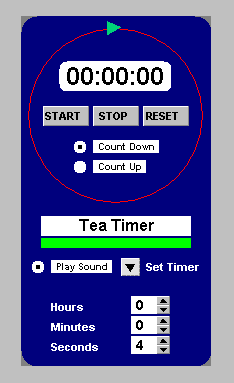
Click "Count Down", choose hours/minutes/seconds, then click Start.
Tip: if you don't like the label "Tea Timer", click on that label and type what title you like instead, then hit Enter or Return (or click anywhere outside that area). If you mistype you can't backspace, but just click on the name again and re-type it.
The code is from http://javaboutique.internet.com/JavaTimer/ and is available online on various websites such as (click one of these links to try it, it's the same on each):
Pro
- It remembers your previous setting e.g. x minutes, as long as the browser remains open, so (unlike the previous service) you don't have to re-select the countdown time, so after the alarm sounds you can just click Start to restart the timer (and stop the alarm sounding).
- Alarm sounds for a decent length of time too.
Con
- Every day, the first time you go to the webpage you have to click "Count Down" and then choose the number of minutes afresh, to get it going. Some may forget to do that. Similarly the "Tea Timer" title - your changes aren't saved.
- You have to click Start to restart it each time after it goes off. Again, some may forget to do that.
- The alarm stops after a few seconds so you might ignore it and forget to stand up.
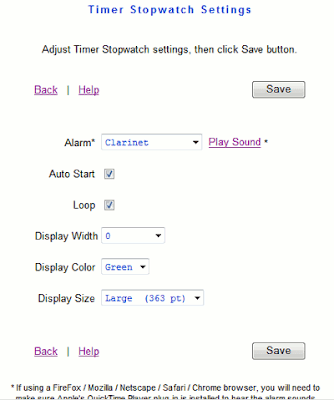
- Click the Timer Stopwatch Settings link, then (see pic above):
- Choose your Alarm sound. Tips:
- go for Horn (sounds for longer and is the most insistent, to me) or Beep (loud-ish, but too short in my view)
- don't use "Pop Up" - that only plays a sound if you're still viewing that tab, or are in another application; if you're in another tab of the same browser, the alarm won't go off. Also you have to OK the popup before the timer will restart the loop.
- Tick Auto Start (so the timer automatically starts counting down whenever your browser opens that webpage e.g. on startup)
- Tick Loop to repeat the timer automatically; choose Sound (you can preview them) then
- click Save.
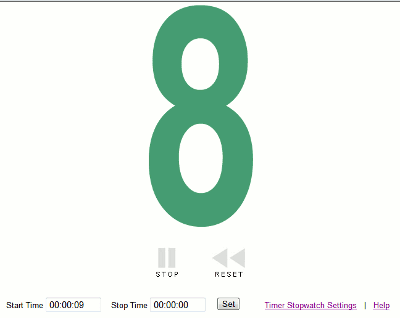
- It goes back to the main page (see pic below). Just click Stop if necessary first, then for Start Time enter 00:30:00 or 00:45:00 (for 30 or 45 minutes respectively) or whatever timer interval you prefer (you can leave the Stop time at 00:00:00), then click Set. That automatically starts the timer going as well.
- Note that:
- The "Stop" button actually pauses it (and you can click Start again to continue).
- "Reset" button restarts the countdown from scratch, e.g. if you've got up for a cuppa, you can give yourself a pat on the back and start the 30 minute (or whatever) countdown from 00:30:00 afresh when you get back to your seat.
- Every time you visit that page (unless you've deleted your cookie) it'll remember your settings.
Pro
- Very customisable, including Loop to repeat the cycle automatically (hooray!).
- Your settings are remembered on the computer with a cookie. If you delete cookies, this'll go unless you remember to preserve the cookie for this site. But you can always redo your settings.
- Choice of different alarm sounds which you can preview.
- "Stop" button to pause is good, as is having a "Reset" button to restart the cycle
- Decent help page.
Con
- Alarm only plays once through, not continuously until you stop it. Good for your colleagues, not so good to make you get up!
- If you use a different computer you have to set up your settings afresh on it. A very minor disadvantage considering most of the others won't save any settings at all.
- The alarm options are mostly too short (Drums) or too soothing (like Clarinet and Sonata) to make you get up! Phone is too confusing. Which is why I think Horn is best, it's the loudest and plays for the longest time.
- With browsers other than Internet Explorer you'll have to install QuickTime plugin in order to hear the alarm - e.g. for Firefox.
- It seems to have paused itself once, in my testing. Maybe it was me, but the button should have read Start after a manual pause, and it didn't, yet it wasn't counting down..
Try TimeMe.
Quite sophisticated when using the Custom option. And certainly the most Web 2.0, with the ability to add their widgets to your blog or website, Facebook, gadgets for iGoogle etc.
The settings I suggest are as follows (you can test it by picking a short countdown).
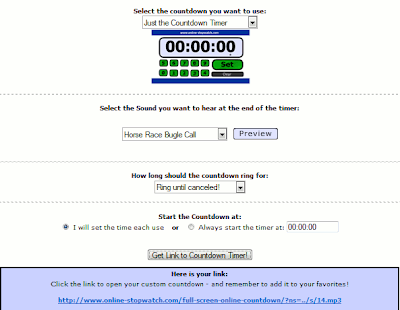
- See pic above - just select "Just the Countdown Timer", pick your alarm sound, pick "Ring until canceled", and I'd go for "Always start the timer at" and enter e.g. 30 minutes (00:30:00) or 45 minutes (00:45:00).
- Then click "Get Link to Countdown Timer", and click or save the link in the blue box that appears - that's the link you want to use for your home page or favorites in future, which goes to the custom webpage they'll set up.
- If you've chosen "I will set the time each use", after clicking the link to the timer webpage you'll have to click the number buttons to set the time, then click Set and Start. And each time you go back to that webpage you have to do that too. Which is why I prefer
Pro
- Sets up a special webpage you can access from any computer over the internet, with your chosen settings.
- Alarm will keep going until you click "Clear" (if you use "Ring until canceled" as I suggest), so you'll have to pay attention!
- Good selection of sounds, which again you can preview. The alarms are good and loud too (though "Siren" may cause a real stampede. I like Submarine, Air raid siren and Original bell for being insistent without being too piercing, although Horse race bugle call is rather fun, and "Applause" may reward you for being a good healthy thing and getting out of your seat for a bit!)
- Pause button available (Start becomes Pause after you click it), which becomes Cont when pressed.
Con
- You have to remember to click Start when you first open your browser, to get it going every day.
- Every time it goes off and you click Clear, you then have to click Start again afresh for the next time.
- There's a Pause option but no Reset (unlike TimeMe). Tip: just click Clear and Start to reset.
- As with Online Clock, the fact that it won't shut up till you manually click Clear is great if you're at your desk, but bad if you left and forgot to turn it off as it may annoy your colleagues, so you need to remember to turn it off if you get up! And restart it when you get back.
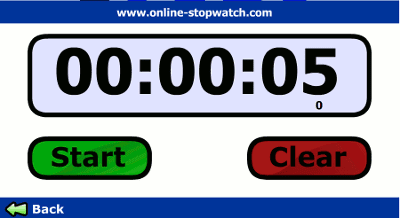
Here are some pages I made earlier, if you want to use them - remember you have to click Start each time after you click Clear, as it won't repeat the cycle automatically (if you try the links below, on this occasion please ignore the arrows, don't click on them, just click the links; and use the Back button on your browser to get back to this page, not the Back button on the webpage):
Try Custom Countdown.
Desktop alternatives?
Online Stopwatch also offer a free basic Windows download which will "stay on top" of your other apps, plus other more customisable SWF downloads for Windows and Mac, all of which hopefully you can download and run stand-alone on your work computer even if your IT department won't let you install software generally.
You just doubleclick the downloaded file to run it, and you're not installing anything, so hopefully your IT department won't come and wag their finger at naughty you - but it's best to check with them first.
Note that the SWF files need Adobe Flash Player installed to run, which you may or may not have on your work computer; the "stay on top" doesn't, but it's Windows only, and is not very customisable.
XNote Timer (again via Vicki Blackwell, NB it's the Timer not the Stopwatch) for Windows also runs stand alone, again without needing to install anything; it's free to try though they ask for payment if you use it, it lets you use your own sound files, you can tick "Restart the timer" to keep it going round and round, you can even set hotkeys to start, stop or reset it, yay.
But, there's no Pause, and more importantly you can either get your sound file to keep playing continuously (which is what the Loop option here does, confusingly) till you hit Stop, or you can have the cycle automatically restart - but you can't have both. So either tick Loop to keep the alarm playing, then click both Reset and Start each time it goes off; or else, use "Restart the timer" and remember it'll go off once but it won't nag you continuously till you deal with it. Tip: click More, pick Timer; to change the options e.g. sound file, interval, you should change to Stopwatch then change back to Timer.
Verdict
I'm lazy, so I like TimeMe - it's got good options which involve zero work once you've set up your options and browser home page; then you just have to remember to launch your browser (not even that if you autostart your browser on startup). None of the other online timers will restart the countdown cycle automatically when you stop the alarm sounding.
I just wish TimeMe also had an option to make the sound keep on playing continuously till you shut it up (while still repeating the timer cycle). Then it would be perfect for making me get up out of my seat! I guess one loud honk will have to do me for now.
The TimeMe people told me they do have that option, but not for the free version. You have to get the paid version if you want that.
One day maybe we'll have chairs that'll give us a good prod (or electric shock?!) and physically tip us out of them at regular intervals. 'ealth & safety, innit? But not for some time yet, I suspect. (Meanwhile, if you're looking for a decent chair to try to save your back, see my computer /office chairs review.)


