Pages

Showing posts with label images. Show all posts

Sunday, 4 September 2011

How to batch crop JPEG photos, scans, images


Here's how to crop a bunch of JPEGs with the free JPEGCrops (Windows), which I used where I needed to chop half an inch (of printer-ink-wasting-black) off the top edge of one set of scanned music score pages, and half an inch off the bottom edge of another set (where I'd turned the book upside down to scan those pages). I couldn't find a proper howto, so here's my step by step.

Cropping multiple files in a batch saves having to open, crop and save each JPEG individually. You just set the edges of the first image (where you want it to be cropped to), and the rest of the photos or pics can automatically be set to the same dimensions.

If all the unwanted bits are on the same part of every image, eg always the left margin or always the bottom margin, you can use the excellent free PDFill PDFTools. My problem was that for some images I needed to crop one edge, and for others another edge, so I couldn't do that - hence JPEGCrops.

I couldn't get JPEGCrops to work fully at first, so here's my step by step tutorial, including all the basic stuff most people skate over:

  1. Download, install and open JPEGCrops. It's a bit blank looking, but that'll change.


  2. See the folder name in the bottom right? That's the folder into which the software will automatically save the cropped images, in my case "C:\Users\myloginname\Cropped". You can change the location of that folder via the menu File > Select Output Dir to choose another folder, but obviously you need to do that before you crop the images in question.

  3. Go to menu File > Preferences and choose your Default Aspect and OK. In my case, as I'm in the UK, it's A4 - your mileage may vary. Feel free to experiment and change it for each set of images and see how it looks.


    (The Preferences box is weird on my system, many buttons aren't visible, probably something to do with my system.)

  4. Now in JPEGCrops open up the pics that you need to crop. There are 2 possible ways -
    1. use the menu File > Open Images (or click the "Open Images" button at the bottom left), then navigate to the folder containing your JPEGs, then select the files you want; you can select several files by holding down the Ctrl key as you click on the ones you want, and click Open, or
    2. in Windows Explorer or Computer, navigate to the right folder, select the images you want (again Ctrl and clicking, or the Spacebar key for hotkey fans, does the trick), and drag the selected images into the JPEGCrops window.

  5. Your selected images should now all be in JPEGCrops. Look at the first pic. You'll see parts of it are greyed out, and parts of it are more clearly visible with a white background. The cropping will get rid of the greyed out bits.


  6. Depending on your situation, you may want to UNtick the "Flip aspect" button, as I did, to get a proper Portrait view:
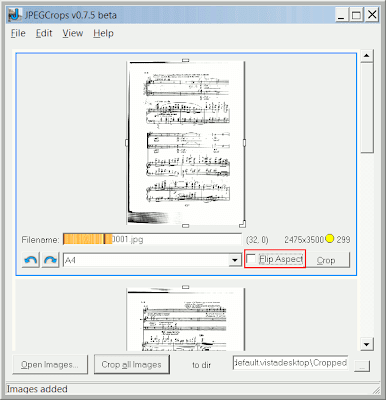

  7. There are white horizontal and vertical bars around the clearly visible bit. You'd drag these with your mouse to outline the area of the JPEG that you want to keep. But don't do that just yet!

  8. This is the step I missed: first, go to the Edit menu, make sure "Synchronize Crops" is ticked (it isn't in the pic below), by selecting it if necessary.


    This is to make sure that the crops etc you make to one image will automatically be done to all the others you opened in JPEGCrops. Otherwise you have to tediously do them one by one, which kinda defeats the purpose of using "batch" image editing software!

  9. Now that sync is on, you can drag the white bars to outline the part of the image that you want to keep. There are right and left curly arrows at the bottom left which you can use if you also want to rotate all images at once.


  10. Once you've done the edits, it's a good idea to scroll down through all the images in JPEGCrops to check that the correct parts are outlined in all the images. This is to avoid cutting important bits off the occasional image, especially if you haven't scanned them all in exactly the same way and sometimes had the book (or whatever) a few millimetres off.

    You may find you have to tweak some of the edges one way or the other, so that you have the sections you need outlined in all the pages. Worse comes to worse, you could untick the synchronisation, then tweak it just for a particular problem image or two.

  11. When all set, click the "Crop all images" button (NOT the "Crop" button):


  12. It automatically crops them and saves the cropped images in a new folder, the folder mentioned in step 2. (You can open that folder quickly by clicking in the box, selecting the folder path info and copying it into clipboard, then pasting it into your Windows Explorer address bar.)

  13. In my case, I then repeated this with a different set of JPGs where I needed to crop a different edge off. Then I stitched the cropped images together into a single PDF file for ease of printing, rather than having to print each cropped image one by one - PDFill Tools works great for that too (it's the "Convert Images to PDF" button, then drag and drop the image files, and reorder images in the list if necessary).

Saturday, 4 June 2011

Convert files free, online - PDF to Word DOC, etc - review of tool


ConvertFiles.com, which I've just discovered, is a very useful online tool, especially to convert Adobe Acrobat PDFs to editable word processing documents eg Microsoft Word DOC format.

You just give the website the URL of a file (starting with http, https, ftp), or you can upload a local file, and it will automatically recognise the file type and offer you a choice of suitable formats into which it can be converted.

Tip: sometimes it won't recognise PDF files where the URL doesn't end in .pdf - so in that situation just download the file and upload it from your computer.

There's a decent range of formats available (see lists below).

Speed - you can download the converted file quite quickly, even for big files.

Maximum file size limits - it will accept files of up to a very generous 200 MB.

OCR - it will even do OCR (optical character recognition) of image files, ie convert scans of images etc to editable text - and, though they don't mention this (they should!), that includes PDF scans, I tried some.

It converted a massive PDF scan beautifully into an editable Word document, with very few errors.

What's more, it's all free, although in gratitude I've checked out some of their advertisers!

Supported formats and conversions

From their FAQs, here's their full list of supported conversions:

ARCHIVE

7Z to RAR, TAR, ZIP, TGZ, TAR.GZ
RAR to TAR, ZIP, TGZ, TAR.GZ
TAR to RAR, ZIP, TGZ, TAR.GZ
TGZ to TAR, RAR, ZIP
TAR.GZ to TAR, RAR, ZIP
ZIP to TAR, RAR, TGZ, TAR.GZ

DOCUMENT

DOCX to DOC, ODT, RTF, SWX, TXT, HTML, XHTML, PDF, PDB, ZIP
DOC to ODT, RTF, SWX, TXT, HTML, XHTML, PDF, PDB, ZIP
ODT to DOC, RTF, SWX, TXT, HTML, XHTML, PDF, PDB, ZIP
RTF to ODT, DOC, SWX, TXT, HTML, XHTML, PDF, PDB, ZIP
SXW to ODT, RTF, DOC, TXT, HTML, XHTML, PDF, PDB, ZIP
TXT to ODT, RTF, SWX, DOC, HTML, XHTML, PDF, PDB, ZIP
ODS to XLS, CSV, RTF, PDF, HTML, ZIP
XLS to ODS, CSV, PDF, HTML, ZIP
XLSX to XLS, ODS, CSV, PDF, HTML, ZIP
PDF to DOC, PNG, JPG
XPS to PDF
CHM to PDF, EPUB, FB2, MOBI, LIT, TXT
PAGES to PDF

PRESENTATION

ODP to PPT, PDF, SWF
PPT to ODP, PDF, SWF
PPTX to PPT, ODP, SWF, PDF

E-BOOK

EPUB to FB2, MOBI, LIT, PDF, TXT
FB2 to MOBI, LIT, EPUB, PDF, TXT
MOBI to EPUB, FB2, LIT, PDF, TXT
LIT to EPUB, FB2, MOBI, PDF, TXT
PRC to EPUB, FB2, MOBI, PDF, TXT, LIT

DRAWING

ODG to PDF, JPG, PNG, SWF
DXF to PDF, JPG, PNG, SWF
DWG to PDF, JPG, PNG

IMAGES, PICS, PHOTOS

BMP to GIF, JPG, PNG, TIF, ZIP, PDF
GIF to BMP, JPG, PNG, TIF, PDF
JPG to GIF, BMP, PNG, TIF, PDF
PNG to GIF, JPG, BMP, TIF, PDF
TIF to GIF, JPG, PNG, BMP, ZIP, PDF

OCR

BMP to DOC, TXT, RTF
GIF to DOC, TXT, RTF
JPG to DOC, TXT, RTF
PNG to DOC, TXT, RTF
TIF to DOC, TXT, RTF

AUDIO

AAC to WAV, MP3, OGG, M4A, FLAC, AU, WMA, AMR
AMR to WAV, MP3, OGG, WMA, AAC, FLAC, AU, M4A
AU to WAV, MP3, OGG, WMA, AAC, FLAC, AMR, M4A
FLAC to WAV, MP3, OGG, M4A, AAC, AU, WMA, AMR
M4A to WAV, MP3, OGG, WMA, AAC, FLAC, AU, AMR
MP3 to WAV, OGG, AAC, M4A, FLAC, AU, WMA, AMR
OGG to WAV, MP3, AAC, M4A, FLAC, AU, WMA, AMR
WAV to MP3, OGG, AAC, M4A, FLAC, AU, WMA, AMR
WMA to WAV, MP3, OGG, M4A, AAC, FLAC, AU, AMR
MKA to WAV, MP3, OGG, M4A, AAC, FLAC, AU, AMR, WMA

VIDEO

3GP to AVI, MOV, WMV, M4V, MP3, JPG
AMV to 3GP, FLV, MP4, MPEG, AVI, VOB, MOV, MKV, ASF, M4V, WMV, MP3, JPG
ASF to 3GP, FLV, MP4, MPEG, AVI, VOB, WMV, MOV, AVI, M4V, MP3, JPG
AVI to 3GP, FLV, MP4, MPEG, VOB, WMV, MOV, MKV, ASF, M4V, MP3, JPG
FLV to 3GP, AVI, MP4, MPEG, VOB, WMV, MOV, MKV, ASF, M4V, MP3, JPG
MKV to 3GP, FLV, MP4, MPEG, AVI, VOB, WMV, MOV, ASF, M4V, MP3, JPG
MOV to 3GP, FLV, MP4, MPEG, AVI, VOB, WMV, MKV, ASF, M4V, MP3, JPG
M4V to 3GP, FLV, MP4, MPEG, AVI, VOB, MOV, MKV, ASF, WMV, MP3, JPG
MP4 to FLV, 3GP, AVI, MPEG, VOB, WMV, MOV, MKV, ASF, M4V, MP3, JPG
MPEG to AVI, 3GP, MP4, FLV, VOB, WMV, MOV, MKV, ASF, M4V, MP3, JPG
MPG to AVI, 3GP, MP4, FLV, VOB, WMV, MOV, MKV, ASF, M4V, MP3, JPG
RM to AVI, 3GP, MP4, FLV, MPEG, VOB, WMV, MOV, MKV, ASF, M4V, MP3, JPG
VOB to 3GP, FLV, MP4, MPEG, AVI, WMV, MOV, MKV, ASF, M4V, MP3, JPG
WMV to 3GP, FLV, MP4, MPEG, AVI, VOB, MOV, MKV, ASF, M4V, MP3, JPG
M2T to WMV, 3GP, FLV, MP4, MPEG, AVI, VOB, MOV, MKV, ASF, M4V, MP3, JPG
M2TS to WMV, 3GP, FLV, MP4, MPEG, AVI, VOB, MOV, MKV, ASF, M4V, MP3, JPG
MTS to WMV, 3GP, FLV, MP4, MPEG, AVI, VOB, MOV, MKV, ASF, M4V, MP3, JPG

OTHER

EPS to GIF, JPG, PNG
PSD to GIF, JPG, PNG

The downside?

Don't expect any support (I emailed them with a query which they never responded to). But hey, it's free.

Friday, 1 January 2010

Public domain - images, music, writings etc you can use for free


Today is Public Domain Day. Creative works protected by copyright are meant to become "public domain" after a certain length of time, which depends on the country and type of work - e.g. literary, musical, or artistic - usually depending on the lifetime of the work's author. If the author is still alive, the work can't be public domain.

Anyone is free to copy or use a public domain work, enabling people to build on it and adapt it etc, for the benefit of culture and society generally - and no one can say they don't have influences, we all stand on the shoulders of giants.

That's the deal society makes with creators. They get exclusive rights to exploit their creations for a period, and after that it's available freely for the cultural enrichment of all.

There's a new Public Domain Day website to mark and publicise the fact that on 1 Jan every year, more works go into the public domain. It was set up by Communia, the European Thematic Network on the Digital Public Domain.

The site has some useful links including the following.

Sprixi image search - mini review

Sprixi image search is an excellent and very well thought through, user friendly site for finding images that you can use for free. Very helpful, better than the Creative Commons search page. It covers both public domain and Creative Commons licensed works (works still in copyright, but which the owner is allowing people to use quite freely, depending on the exact terms of the individual licence. Used a lot e.g. on Flickr.)

It's simple and intuitive. You enter a search keyword for the type of pic or photo you're looking for, which can be an abstract concept if you want, and it gives you a bunch of pictures or drawings etc to choose from. Here's my search for kittens, to continue on from my Firefox about:kittens post:

But what I really really like is that it makes it very easy for users to help out - when you roll over the main image presented, it just asks whether the image is a useful image for your search term and you answer Yes, No or Maybe with one click, to influence future search results. (Votes from registered users are weighted higher.)

Then it just takes another click (on Use wouldja believe) to Use the image. You can use the link, or download a copy of the graphic.

Here's what I downloaded, note the attribution at the bottom:

So it's incredibly easy to get the link or Download the image, and if you download it the pic file has automatically got the right credits overlaid on it so you don't have to do anything more yourself, you can just use the downloaded image in all good conscience.

Public Domain Works registry

I mentioned the Public Domain Works registry previously in my post trying to puzzle out the complexities of UK music copyright.

It's not easy for people to figure out which works are in the public domain, and which aren't. (See e.g. the many public domain calculators!)

This site lets you search for a work you know some details about e.g. its title or the name of its author or composer, to check if it's in the public domain or not. Note that though it says the site covers "artistic" works, that's "artistic" in the broadest sense, and the database includes music and writing as well as artwork.

Tip: search just for surname. Trying both first name and surname doesn't usually work with that database.

Try also the Public Domain Sherpa.

Happy New Year's Day, and happy Public Domain Day!

Saturday, 1 December 2007

Blogger: bug with posted pics, & temp fix


Kirk spotted that if you upload a pic or photo to Blogger using the built in Add Image icon in the Blogger post editor, a new bug now means that anyone clicking on the picture in your blog post to see a larger version gets prompted to download it instead.

Kirk posts, and Team Blogger immediately see and leap into action...

Blogger acknowledged the issue and published a temporary workaround the very same day.

Here's a step by step to fix the problem, at least for now:
  1. After you've uploaded the pic, go to "Edit HTML" view in the Blogger post editor.

  2. Find the code for the image, which will look something like this (I've put the bits that you need to change in bold red):
    <a onblur="[stuff]" href="http://[stuff]/AAAAAAAAAps/l45SRB9MHmc/s1600-R/16112007023.jpg">
    <img style="[stuff];" src="http://[stuff]/AAAAAAAAAps/mde1x2JIA7c/s200/16112007023.jpg" [stuff]/></a>
  3. Go to the second tag that starts <img... and find the bit that starts with src.

  4. Copy into your clipboard the jumble of letters and numbers immediately before the s-something bit, which in the above example is s200 (it could be s320 or s400). Just copy the bit between the / slashes, not the slashes themselves, so in the above example I'd copy mde1x2JIA7c, marked bold green.

  5. Go back to the first tag that starts <a... and find the href part.

    1. In the s-something bit, change the -R to -h. But don't touch the rest e.g. the s1600 in the above example.

    2. Find the s-something bit and delete the letters and numbers just before it, between slashes (in the above example l45SRB9MHmc), or highlight it and paste in what you copied from the img src bit. Don't delete any of the letters or numbers before that bit, so in the above example don't delete or change the AAAAAAAAAps bit or the letters/numbers before it.

  6. So in the above example the first bit of the image code would end up looking like:
    <a onblur="[stuff]" href="http://[stuff]/AAAAAAAAAps/mde1x2JIA7c/s1600-h/16112007023.jpg">

Hopefully Blogger will fix this soon!

Monday, 15 October 2007

Blogger Play: fun, but secretly evil?


Blogger Buzz previously announced the release of Blogger Play, a slideshow of images recently uploaded by users of Google's Blogger, and have now made available a Blogger Play Google Gadget to add to your iGoogle home page (and also to your blog), and introduced some keyboard shortcuts too.

You can visit the Blogger Play webpage to see the slideshow or photostream, which apparently the Google team themselves have open permanently on big screen.

One of first my thoughts was, had Google considered converting that photo stream into a feed for Google Pack's screensaver - indeed had they used that technology for Play? Great opportunity for integrating Google services there. But then I wondered about aspects like bandwidth, copyright and privacy, which I'll come to.

Blogger Play - Pros

It's a fun time-waster. The constantly changing nature of the display of random pics certainly helps in this age of short attention spans, and there's a certain fascination with seeing photos by total strangers march across your screen, perhaps in the same way as it's fascinating to search for music by singing into your computer's mic and playing back total strangers' attempts at singing popular songs on midomi.

Blogger Play can also help bloggers publicise their blogs. Clicking on a particular image that grabs your interest takes you to the blog post it came from, where you can read what the blogger wrote. So you may get readers who might otherwise not have encountered your blog, and who knows, maybe they'll decide to stick around and even subscribe.

Blogger Play - Cons

Bandwidth

But it's also a bandwidth waster for us consumers and Net users who are on metered packages. Blogger Play eats bandwidth like nobody's business. When I first tried Play, I noticed constant Net activity when my browser was open on Play, so I opened Netmeter and, looking at the average change in totals, which I timed on a few occasions, it was using up about 2MB of my capacity per minute. That means that if I had it on in the background for 7 or 8 hours a day, I could get through my 8GB monthly allowance in 2 weeks, just on Blogger Play alone! The Blogger Play FAQ also confirms that "on a fast setting, Blogger Play can download as much as 200MB an hour", so that's about a gig in 5 hours - a month's bandwidth allowance in a week or less, for me!

I'm not sure if Google can do anything about that - is it somehow downloading the full size photograph or picture in the background instead of a reduced version, and if so why can't Google tweak it to download a smaller sized version to display? I really think they should do that if they can.

If you're on a limited bandwidth per month package like I am, you really ought to watch it. Just leaving a web page open on Play may be enough to churn through your monthly allowance in hardly any time at all. I've also noticed that the Buzz blog now has the Play gadget in its sidebar. If I leave my browser open on Buzz, that is also eating through about just over 0.3MB per minute on average, which is still using up 18MB an hour, or 1 GB in about 2 and a half days. I wonder if it's running through bandwidth allowance at about the same rate if you have Play on your iGoogle home page too (I've not tried it). It's all very well for the Google team, they no doubt have unlimited bandwidth to play with, but it's just not the same for the rest of us mere mortals in the real world!

In other words, I have now stopped using Play, except for very short periods at a time, and I no longer leave a browser page open on Buzz as I used to as standard. It's the same with any blog that displays the Blogger Play widget - I may skim it quickly but I'm going to leave that blog fast in order to save my bandwidth (so having Play in your sidebar may be a visitor killer in time, in my view). If you're a blogger I would ask, pretty please, be good to your readers and don't have Play in your sidebar, because many of them may be on limited bandwidth packages (or even worse for them, dialup access rather than broadband).

Privacy and copyright

There are surely also issues about privacy, copyright, draft posts etc. I upload pics to my blog in order to use them in my posts. I expect people will see them when they're reading the published blog post. But I have lots of draft posts on the go at the same time, 20-30 usually. I'm not sure I like the idea of people seeing my uploaded images till I've finished the post and am ready for the world to view them. However, to me it's not entirely clear whether Play only includes pictures from published posts, or any images uploaded to Blogger, even to draft posts.

I'm hoping it's only pics from published posts, as if you click on a photo in Play it takes you to the post it came from - but maybe I just haven't clicked on a pic from a draft post yet. It shouldn't take you to a private draft post for sure, for privacy, security and other reasons, so hopefully that means Blogger are only drawing on published images (if you'll forgive the mild pun) for Play. Does anyone know?

There's also the copyright aspect. I don't think copyright law has kept up with technology (see e.g. my post on the complicated position on using music in your YouTube videos), and there still are too many uncertainties. If you publish a blog post with your uploaded photographs, I think it's clear that you have at least given implicit permission for people to view the photos on their own computers when reading the blog post. But surely that doesn't mean that you knew or expected that your pics would be taken and used for things like Play? There's a similar privacy angle too, e.g. as one user put it (who wasn't comfortable with the idea of their children's photos being on someone else's blog or gadget), do most people even realise that their uploaded photos could get shown on someone else's blog or iGoogle page?

I'm no copyright expert and this isn't legal advice, but I wondered about it. And, looking at the Blogger TOS (terms of service), I see that it says in item 6 that "By submitting, posting or displaying Content on or through Google services which are intended to be available to the members of the public, you grant Google a worldwide, non-exclusive, royalty-free license to reproduce, publish and distribute such Content on Google services for the purpose of displaying and distributing Google services." Which is interesting.

I never knew that uploading anything for public use on any Google service means Google can use it on any other Google service they like. Did you? That seems very broad. Does it mean they really can do what they like with our pics and text? Could they put up advertising on Play and not give bloggers who uploaded pics any cut? Could they even take our blog text content and distribute it via a new Google aggregator service, charge for it or run ads, and not pay us a penny for it ("royalty-free", innit)? Is there a copyright expert in the house...? But I digress.

Back to Play, yes, I know Blogger say in their FAQ that you can opt out of having your pics on Play. But that's a bit like direct marketers saying "Ah, but you can always opt out". What's more (and what's worse), the only way you can opt out of having your images on Play is to completely remove your blog from Blogger's listings. Which will also stop your blog from being indexed on Google, and reduce your blog's profile, visibility and visitors. That "all or nothing" approach hardly seems fair, does it? And perhaps even a bit dictatorial. I think it's only a slight exaggeration to suggest that it's like saying you can opt out of receiving marketing emails if you agree to cut off your email access altogether, because publicity and search engine indexing are the lifeblood of many blogs. Personally, I think Blogger should provide a way for people to opt out of having their pics displayed on Play without having to lose out on the search engine and visibility front. And I'd like some clarity on the draft posts issues too.

I am generally a huge Google and Blogger fan. But as you can tell, for a number of reasons, I don't like Play as it currently is. It's fun and interesting, yes. Maybe most people won't mind or care if their pics are used on Play. But why not be non-evil and play nice with Blogger users by making very very sure they appreciate that their children's pics are liable to be displayed on some random stranger's blog or iGoogle page and by providing a rather less drastic opt out option, and why not be kind to Play users by warning them very clearly that Play chomps through bandwidth, or alternatively make it a less bandwidth-hungry service?

(Yes I should be doing an environmental post as it's Blog Action Day. But I am doing my bit for the environment. I'm saving energy as well as Net capacity by not having Play on all the time!)

Tuesday, 4 September 2007

Animated GIFs fun


Just to follow up on the "What's an animated GIF?" question which I suspect was rather tongue in cheek...

Some of the images may not be worksafe, i.e. don't view the feed on your work or office computer! But with that warning in mind, check out this fun animated GIFs from Del.icio.us feed (RSS feed) from Brett O'Connor's Negatendo.

He's put together a feed of all the animated GIFs saved on social bookmarking site del.icio.us. It's rebuilt every hour, so there should be new stuff on it regularly. It's whatever people have thought worth saving on delicious so it's variable, depending on your tastes, and some items are repeated, but there are some pretty funny ones there. Hours of mindless animation-watching fun!

Friday, 31 August 2007

Picasa: no animated GIFs


Google's Picasa doesn't support animated image files, so if you try to upload an animated image via Blogger, you'll have a problem as it'll stop being animated - because, behind the scenes, pics uploaded via the Blogger post editor are stored on Picasa Web Albums.

So if you want to post an animated pic on Blogger - perhaps an animation you've created from several separate images using a free animated GIF creator - the solution is just to upload it elsewhere to a free file host which allows hotlinking and supports animated GIFs, like Fileden, and then link to it from your post using the "Or add an image from the web" option of the Blogger toolbar's "Add Image" icon.

(Via Blogger's Known Issues blog.)

Saturday, 11 August 2007

Blogger: Internet Explorer 7 Compose mode problem with pics too


Blogger's Known Issues Blog includes a note about a problem which can happen when you drag a pic in Compose mode using Internet Explorer 6 after you've uploaded it: after publishing, it may not be possible to click through to the full size version of the moved image.

However I've noticed a separate issue, not sure if it's related, to do with uploaded pics and photos in Compose mode using Internet Explorer 7 - spotted when my beloved Firefox decided to go on the fritz again so I had to switch to IE temporarily (requiring scream therapy on account of the loss of uploaded pics, as I'll come to mentioning. See, I'm avoiding all mention of comfort icecream this time). And the issue is repeatable, so I suspect it may also be a bug.

This is the issue: if using Internet Explorer 7 you upload a pic to Blogger, and in Compose mode you select the image and cut it using Ctrl-x (if you're a keyboard shortcut fan), then try to paste it elsewhere in the post with Ctrl-v, well you can Ctrl-v till you go blue in the face, or rather fingers, but nothing happens. You've lost the code and URL for the pic, and you'll have to upload it all over again - well it's quicker than looking for the URL of the uploaded pic in PicasaWeb isn't it, though you could do that instead if you prefer. The solution is the same as for the earlier known issue: go to Edit mode instead, and cut and paste the code for the pic from there.

I did a quick screencast showing that you can drag a pic in Compose mode in IE7 and that the code moves with it in Edit mode, but if you try to use Ctrl-x and Ctrl-v on the pic in Compose mode, nothing happens at all and you lose the code completely. The nothing visible happening at the end of the video is me trying to go Ctrl-v without, well, anything happening! In case you wonder.

I used that as an opportunity to try out Jing but I'm not going to embed the video to display it in this blog post because you can't resize the video and it'll muck up my blog by covering up my sidebar (see what I mean on a test blog? - that's one of the issues with Jing, I've encountered a few). So just check out the video direct if you're interested. A fuller review of Jing will follow at some point.

Friday, 8 June 2007

Editing JPEG photos, thumbnails and your privacy - edited out bits may still be visible


Many know this, but some don't, so I thought it worth a reminder. If you crop a JPEG image, typically a photo taken with a digital camera, in order to cut out part of the photo (e.g. people who don't want their photo on a website), or you obscure or edit it to try to hide someone's identity, be warned that there's a gotcha. Sometimes the original photograph can still be recovered from the JPG, in its full unedited unexpurgated glory.

Now I don't really know the ins and outs of how it works and I haven't researched it fully, but it seems that JPGs often contain what's known as EXIF metadata, including a small thumbnail copy of the original image. If you edit a JPEG file using photo editing or graphics software, sometimes the original thumbnail is still preserved and saved along with the edited final image - and can be extracted from it.

UPDATED with quickie explanation: You take a digital snapshot. Behind the scenes, a small thumbnail version of the original pic usually gets automatically created and saved as part of what's known as EXIF data, which is stored with the image as standard. You then edit the original pic e.g. to crop out someone else in the photo, and save that. Well, that also saves the thumbnail with the same file, behind the scenes. Sometimes the original thumbnail info in the EXIF gets updated to reflect your new edited pic. But other times it doesn't get updated - it still shows a thumbnail of the original snapshot. So the large (edited) pic and the thumbnail may no longer match. If you get that situation you might be able to edit the thumbnail too to match, but I don't know how.

The famous nude thumbnail

This "bug" became well known in 2003 when Cat Schwartz posted JPEGs on her blog of just her face, after cropping out bits from the original photo. Unfortunately in the original full photos she was, well, mostly unclad, and someone managed to recover the thumbnails of the naked versions from the published edited photos (there are pics of the original versions around on the Net but I'm not going to link to them, yep I can be a spoilsport sometimes). UPDATE: Oh all right, as so many people have been good enough to stop by, here y'go:

UPDATE: the following links no longer work, so for example of cropped image vs. thumbnail see the links above. You can check out some real life examples of extracted thumbnails which reveal the person's face or body, even after they were mosaiced out or tweaked - which can even reveal e.g. two entire people who had been cropped out. For a fuller low down and other example pics showing originals and extracted thumbnails side by side, see Hutta on embedded thumbnails (I was tempted to ask, is that like in Hutta the Jab? But I won't...).

How to get rid of the original thumbnails?

So the tip is, from a privacy and security point of view, if you want to protect your identity (or someone else's) by editing a JPG photo, you need to be very careful that a thumbnail of the original photo isn't still embedded in it, before you upload, publish or email the edited pic. I gather (but haven't tested it) that you can use EXIF editing software to get rid of the thumbnail, and that Adobe Photoshop's Save for Web function also strips out EXIF data automatically.

Again I've not tested this myself but I'm told by a reliable source that Blogger, in Old Blogger at least, removes EXIF data when you upload a picture file. Picasa Web, to which New Blogger images are now uploaded, probably preserves EXIF data on uploading, but I don't know if that would include the original thumbnail. Anyone know, or care to do more research on this?? JPGs may be better than PNGs or GIFs if you use Blogger, in terms of speed of loading for your users, but obviously you need to be careful about the "hidden thumbnail" possibility if it's important that only the edited image can be seen by visitors.

(This post was triggered by Robert Castelo's recent uploading of photos of the May 2007 Drupal event to Flickr, including ones with anonymous me in them (why I blog anonymously). I'd said it was OK to include the pics of me as long as he blurred out my face, and in fact he mosaiced out all of me, but it then occurred to me to wonder about the edited versions. No dodgy embedded thumbnails there, though, before anyone tries to look - thanks Robert! My secret identity is still safe, phew. And you can forget about trying to see more of the anonymous model in the Lara Croft "lookalike" pic, so there!)